

Where Your Files Actually Live
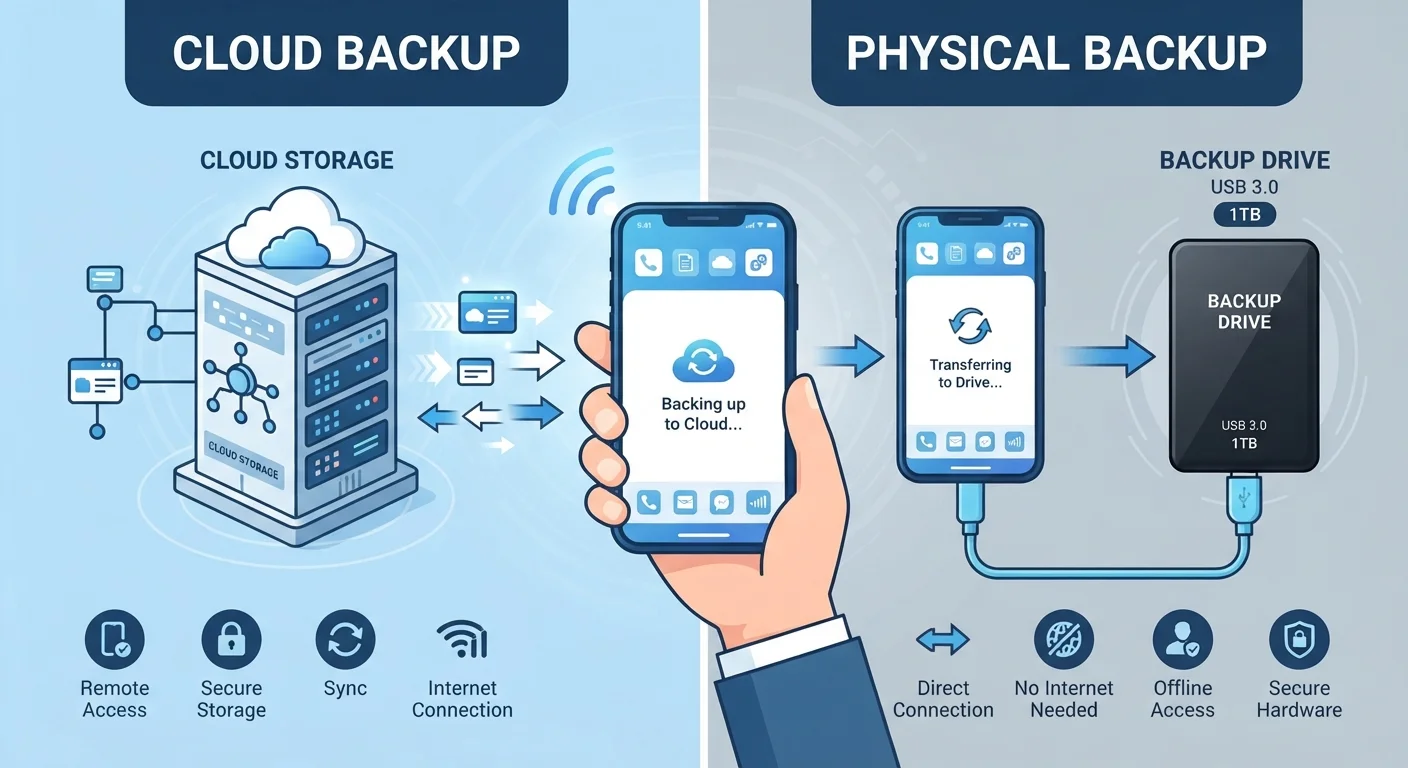
When you save a photo to a cloud service, it doesn't disappear into the air. It travels - encrypted - over the internet to a data centre: a large facility packed with thousands of physical servers. These servers are owned and maintained by technology companies and are often located in multiple countries simultaneously.
Your file is typically stored in more than one location at once. This redundancy is intentional - it means that if one server develops a fault, your file remains intact elsewhere. From your perspective, you just tap or click, and your photo appears. Behind the scenes, a complex network of hardware, software, and security systems is doing the heavy lifting.
EU Data Protection and Server Location
Data centres in Europe are subject to data protection regulations, including the General Data Protection Regulation (GDPR). If you're based in Germany, the location of the servers storing your data can affect your rights regarding access and deletion. Check whether your chosen service stores data within the EU or offers a region-specific storage option.
Data centres in Europe are subject to data protection regulations, including the GDPR. If you're based in Germany, the location of the servers storing your data can affect your rights regarding access and deletion. Check whether your chosen service stores data within the EU.
How Syncing Works Across Your Devices
One of cloud storage's biggest practical benefits is synchronisation. When you save a document on your laptop, that change is uploaded to the server and then pushed down to your phone and tablet - usually within seconds. You're always working with the latest version, regardless of which device you pick up.
This happens through a small background application that runs quietly on each of your devices. It monitors a designated folder and any time something changes - a file is added, edited, or deleted - it communicates that change to the server, which relays it to your other connected devices.
Sync Over Wi-Fi to Save Data
If you're working with very large files or have a limited mobile data plan, consider adjusting your cloud app's settings to sync only over Wi-Fi. Most services offer this option in their settings menu, preventing unexpected data charges on your mobile plan.
If you're working with very large files or have a limited mobile data plan, consider adjusting your cloud app's settings to sync only over Wi-Fi. Most services offer this option in their settings menu, preventing unexpected data charges.
Privacy: What You Should Know Before You Upload
Cloud storage is convenient, but it does involve handing your files to a third party. Understanding what that means for your privacy is important before you decide what to upload.
Most mainstream services use encryption in transit (protecting files as they travel to the server) and encryption at rest (protecting files while stored). However, in most cases the provider holds the encryption keys - meaning they are technically capable of accessing your content if compelled by law or internal policy.
A smaller number of services offer end-to-end encryption, where only you hold the key and the provider cannot read your files at all. This offers stronger privacy, though it sometimes limits features like server-side search.
For a broader look at how your online activity is tracked and stored, the plain-language guide to your digital footprint is a useful companion read.
60%+
Internet users actively using cloud storage
Various industry analyses consistently place global active cloud storage adoption among internet users above 60%, driven by smartphone photo syncing and productivity apps.
3-5×
Redundancy copies of your data
Major cloud providers typically store multiple copies of each file across geographically separate servers to protect against hardware failure.
Getting the Most From Cloud Storage in Daily Life
Cloud storage works best when it fits naturally into the way you already manage your digital life. A few practical habits make a real difference:
- Don't treat it as your only copy of critical files. Syncing is not the same as a dedicated backup. If you accidentally delete a file, that deletion may sync everywhere before you notice.
- Organise before you upload. Dumping thousands of files into the cloud without structure makes retrieval harder over time. Our guide to organising your digital life offers a practical framework for bringing order to photos, documents, and notes.
- Review what you're storing. Free storage tiers have limits. Periodically clearing out duplicates and large files you no longer need keeps things manageable and avoids unexpected upgrade costs.
- Check sharing permissions. Files shared via cloud links can sometimes be accessed by anyone with the URL. Use expiring or password-protected links for sensitive documents.
Cloud storage is a genuinely useful tool - understanding how it works puts you in a much stronger position to use it on your own terms.