
Why This Matters Before Any Handover
Your smartphone holds a remarkable amount of personal information - banking credentials, private messages, health data, saved passwords, and photos. Yet most people hand their device over for repair or lending without taking any precautionary steps first.
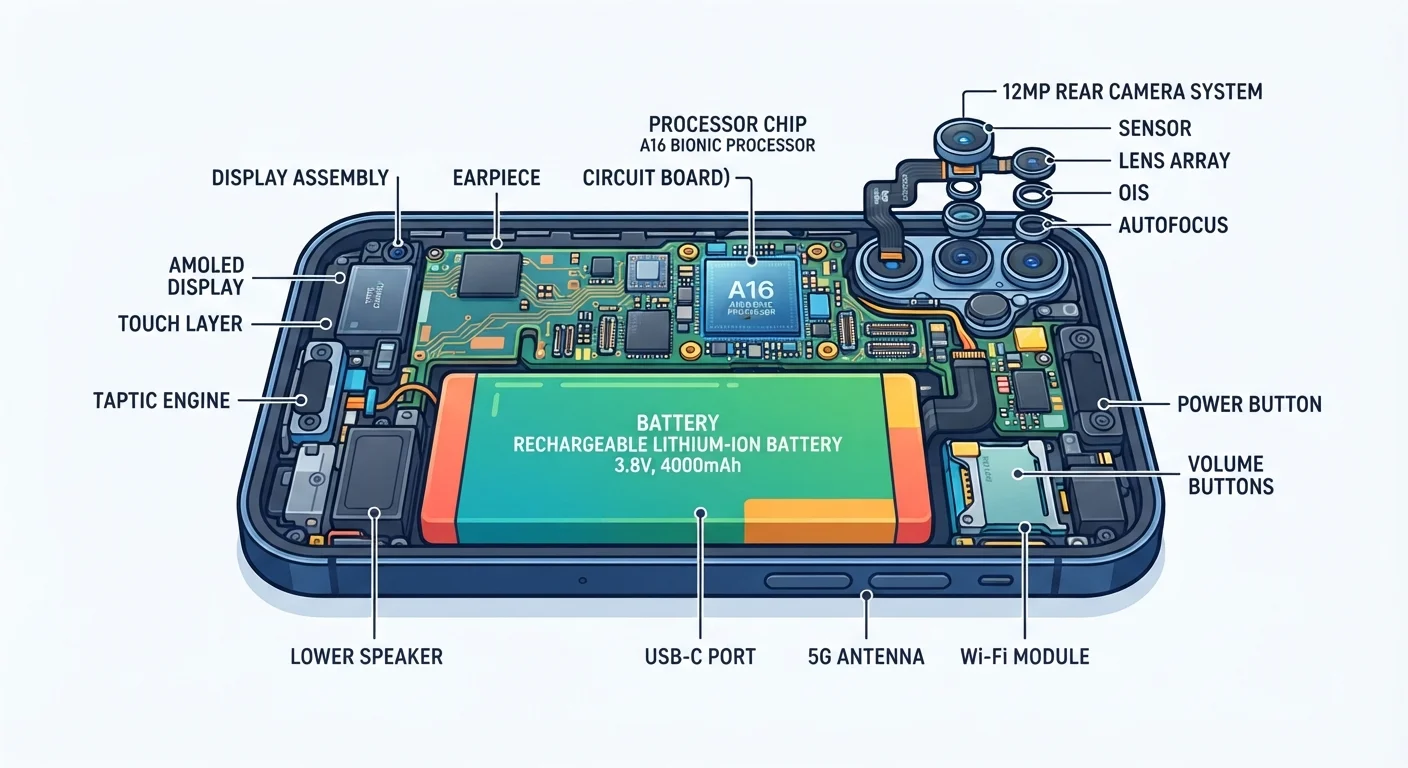
Whether you're dropping your phone at a repair shop, lending it to a family member, or preparing to sell it, the data on that device remains accessible to whoever holds it. This checklist helps you take control of what others can see and do - without requiring any technical background. For a broader look at how your device stores and manages information, see this plain-language guide to smartphone components.
Repair Shops Can See Your Unlocked Screen
Most phone repairs do not require your phone to be unlocked - a technician typically needs only to power the device on and off. Before any repair visit, ask the shop explicitly whether they need your PIN or passcode. If access is genuinely required, use a temporary PIN and change it immediately when you collect the device. Never share your main passcode if it is used elsewhere.
Tools You'll Need
Before working through the checklist below, gather the following. Most items are simply settings already on your phone.
Cloud backup service
Used to create a full backup of your photos, contacts, and app data before the handover.
Your phone's Settings app
Used to change your PIN, disable biometrics, enable guest mode, and perform a factory reset.
A computer or external drive
Provides an additional local backup location for important files and photos.
Password manager (separate device)
Allows you to safely store and access your credentials from another device while your phone is away.
The Pre-Handover Checklist
Work through each group below in order. Items marked must are non-negotiable for protecting your data. Should items are strongly recommended, and nice to have items add an extra layer of protection if time allows.
Back Up Your Data
Secure Your Accounts
Adjust Access and Lock Settings
Review and Remove Sensitive Apps
Before Selling or Permanently Transferring
A Factory Reset Is Not Always Enough on Older Devices
On some older Android devices, a standard factory reset may not fully erase all stored data, particularly on internal flash storage. If you are selling an older device, check whether the manufacturer provides an additional secure erase option in settings, or consult the device's support documentation for guidance on thorough data removal.
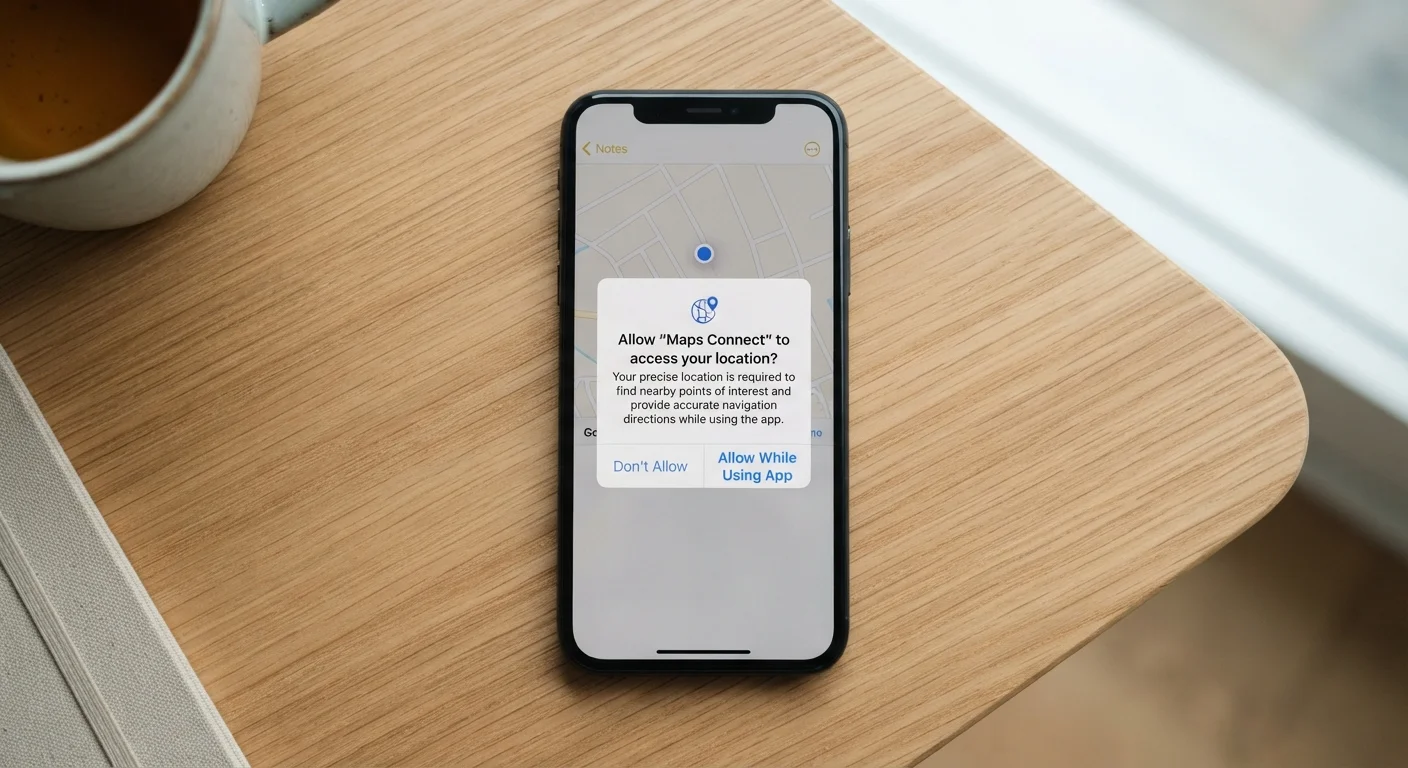
For more on controlling what each installed app can access on your device, the Smartphone Permissions Decoded guide walks through every common permission type in plain language. You may also find it useful to run a broader personal data security audit after your device is returned to you.