
Why Your Battery Never Seems to Last
Most people assume a dying battery means their phone is getting old. Sometimes that's true - but more often, a handful of settings and habits are quietly working against you all day long. The good news is that these are easy to identify and fix once you know where to look.
This article walks through the most common culprits, why they catch people off guard, and exactly what you can do to stop them. For a deeper look at what's happening when apps stay active after you close them, see our guide to background app activity.
Keeping screen brightness at maximum all day.
Why it happens: Phones often default to high brightness out of the box, and users rarely revisit it after setup. Outdoor use genuinely requires high brightness, but the setting stays there indoors too.
Leaving location services permanently enabled for every app.
Why it happens: Apps request location access during setup, and most people tap 'Allow' without thinking. Over time, dozens of apps end up tracking location continuously - including ones that have no real need for it.
Using push email for multiple accounts on a short polling interval.
Why it happens: Push email is the default for most email apps, and it feels convenient - new messages arrive instantly. But it means the phone is in constant contact with mail servers, waking up repeatedly even when the screen is off.
Running Wi-Fi and Bluetooth scanning even when not actively using them.
Why it happens: Both Android and iOS use background Wi-Fi and Bluetooth scanning to improve location accuracy and detect nearby devices. This runs independently of whether you've switched Wi-Fi or Bluetooth 'on' in quick settings.
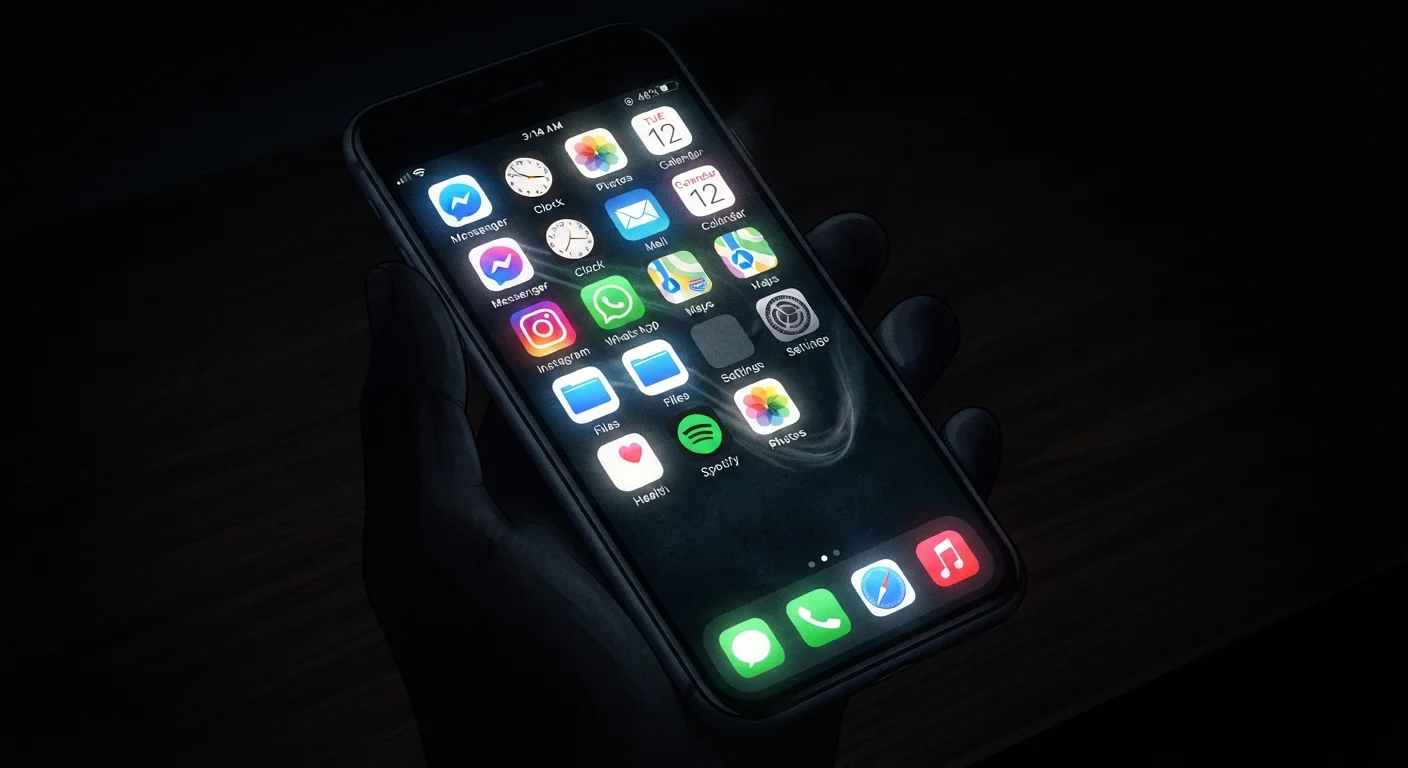
Ignoring live widgets and always-on display features.
Why it happens: Widgets that show live data - weather, sports scores, stock information - refresh constantly in the background. Always-on display modes look subtle but keep part of the screen active around the clock.
Settings Worth Checking Right Now
Once you've identified the habits above, it's worth spending five minutes reviewing your phone's settings. On both Android and iOS, the battery section in your settings menu shows which apps have consumed the most power over the past 24 hours or week. This is the quickest way to spot a surprising offender.
~30%
Battery drain linked to screen activity
Display hardware - including brightness and refresh rate - is consistently identified as one of the top contributors to battery consumption across smartphone research.
Up to 20%
Battery saved by adjusting location settings
Reducing always-on location access to 'while using' for non-essential apps can meaningfully reduce background wake-ups, according to smartphone battery analysis findings.
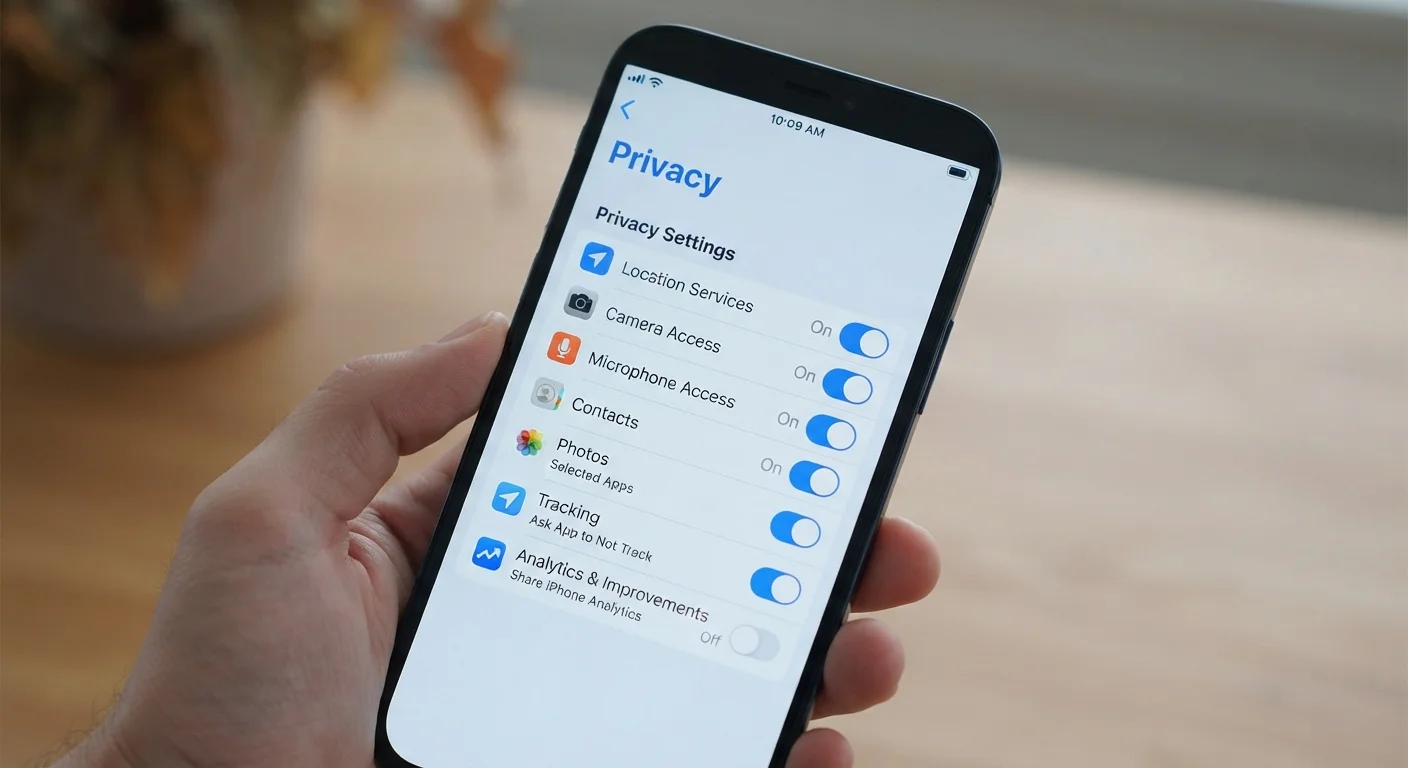
Location settings deserve particular attention. On iOS, navigate to Settings > Privacy & Security > Location Services and set most apps to While Using rather than Always. On Android, find this under Settings > Location > App permissions. Similarly, check whether Background App Refresh (iOS) or Background data (Android) is enabled for apps that don't genuinely need it - such as games or shopping apps.
If you're also trying to reduce small, invisible costs in other areas of daily life, the same audit mindset applies - overlooked household expenses are often discovered the same way: by looking at what's running quietly in the background.
Battery Saver Mode Has Trade-Offs
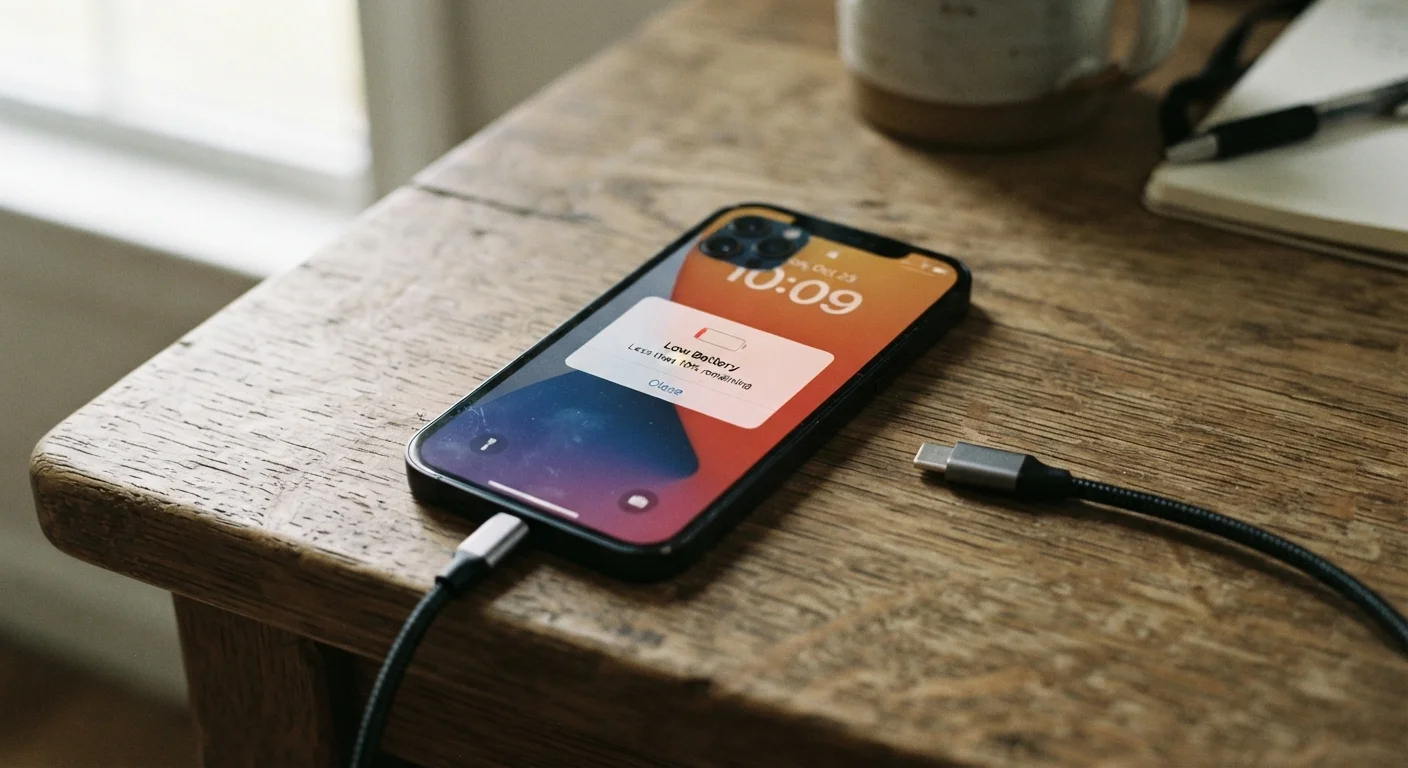
Enabling battery saver or low-power mode is useful in a pinch, but it typically reduces performance, pauses background sync, and may delay notifications. It's a short-term measure, not a substitute for reviewing the underlying settings causing the drain. Use it when you need to stretch your charge, then return to diagnosing the root causes.
For those who want to go further with managing what apps can access, app privacy settings covers the controls most people never review - many of which also reduce unnecessary battery activity as a side effect.