
How Each Backup Method Actually Works
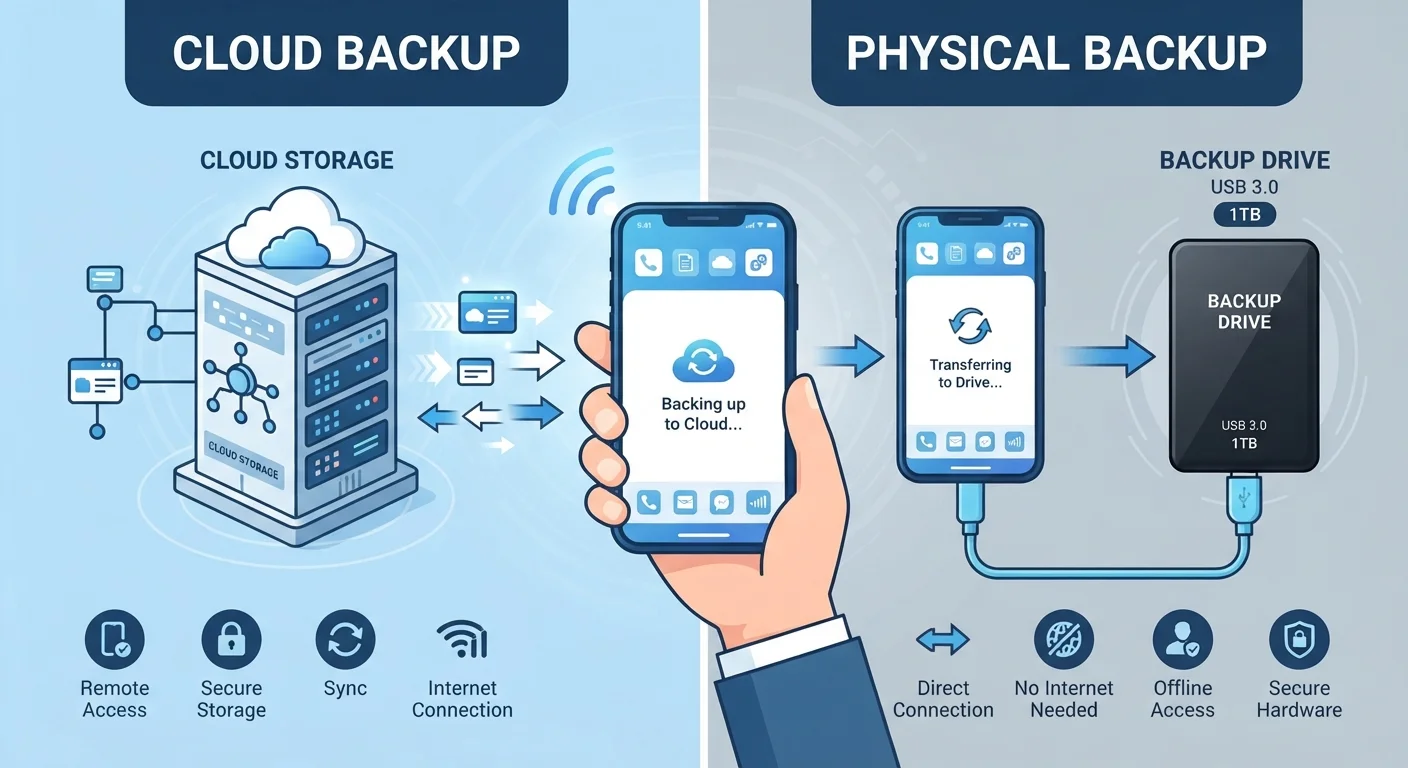
When your phone creates a backup, it copies your photos, contacts, messages, and app data somewhere safe for later retrieval. The key difference is where that copy lives.
Cloud backup sends your data over the internet to servers managed by a third party - typically the company behind your phone's operating system (Google for Android, Apple for iPhone). The process usually happens automatically, often overnight while your phone charges and connects to Wi-Fi. You never physically handle the storage medium.
Local backup copies your data to a device you own: a computer, an external hard drive, or a USB stick. On an iPhone, this is done through a Mac or PC. On Android, the process varies by manufacturer but generally involves connecting your phone via cable and using dedicated software. You keep the storage device yourself.
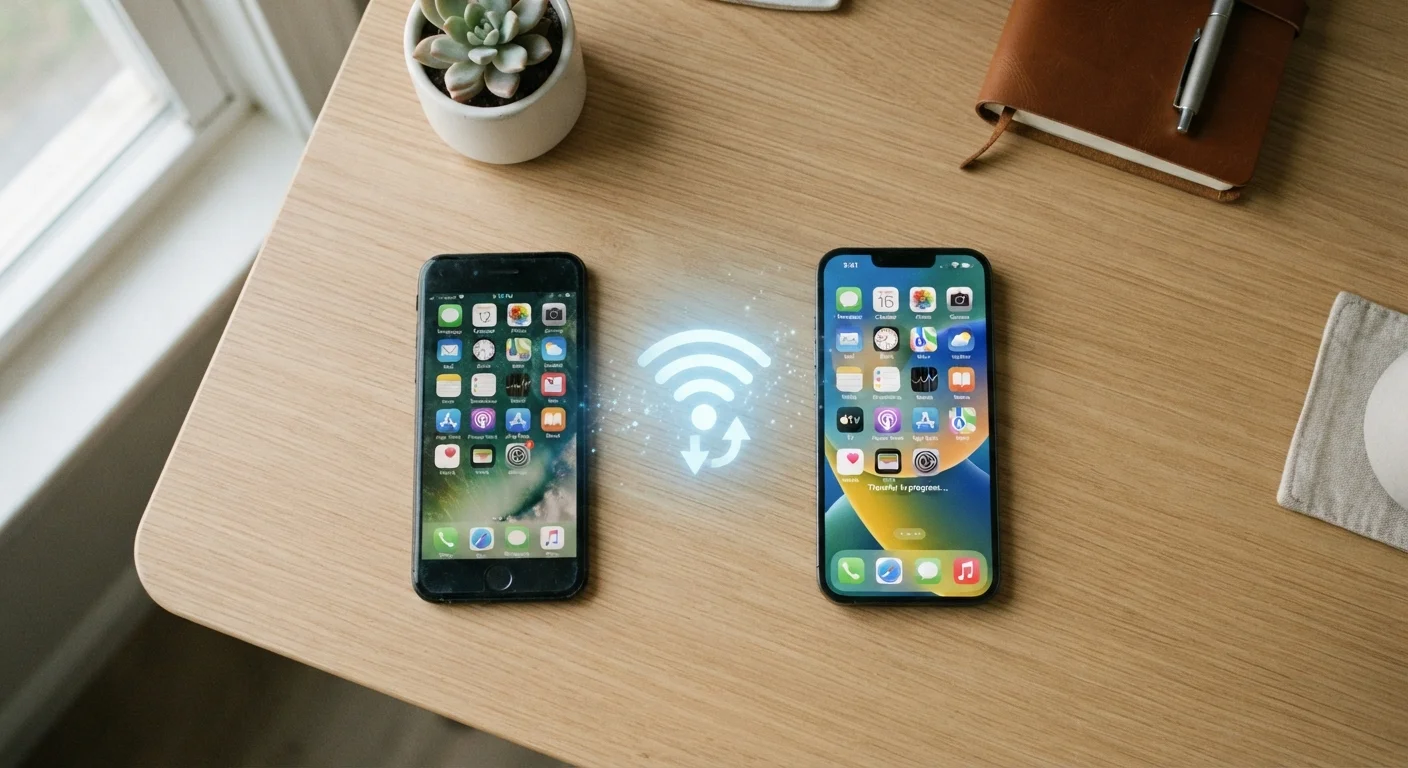
Understanding this distinction matters when something goes wrong - a lost phone, a software crash, or a data corruption event. See also setting up a new phone without losing data for a practical walkthrough of what happens when you restore from either type of backup.
Sync Is Not the Same as Backup
Cloud sync (such as Google Photos or iCloud Photos) keeps your files mirrored across devices in near real-time - but if you accidentally delete a photo, that deletion can sync everywhere too. A true backup preserves a snapshot you can restore from, which is a meaningful distinction. If you have experienced sync issues, syncing across devices explains why these problems occur and how to resolve them.
Cloud Backup: Pros and Cons
Cloud backup is the default experience on most modern smartphones - it requires little effort once set up, and your data is protected even if your phone is stolen or physically destroyed.
Automatic and runs in the background
Most cloud backup services activate without user intervention once configured, uploading new photos and data overnight when connected to Wi-Fi.
Accessible from any device, anywhere
Because files are stored remotely, you can retrieve photos or documents from a browser or another device even without your original phone.
Protected against physical loss or damage
If your phone is stolen, dropped in water, or destroyed, your cloud backup remains completely unaffected and ready to restore to a new device.
Easy to restore when switching phones
Cloud backups are tightly integrated with the phone setup process, allowing a new device to be populated with your apps and content during initial configuration.
The tradeoffs are real, however. Free storage tiers are often limited - typically 5-15 GB - which may not cover a phone full of high-resolution photos and videos. Beyond that threshold, a paid subscription is required.
Free storage tiers fill up quickly
Standard free allowances (commonly 5-15 GB) may be exhausted by a moderate photo library, requiring a paid plan to continue automatic backups.
Privacy depends on a third party's policies
Your files are processed and stored on servers you do not control, governed by the provider's terms and the data laws of their jurisdiction.
Requires a reliable internet connection
Backups cannot run and restores can be very slow if your Wi-Fi connection is weak or capped, which can be a real constraint in rural areas or while travelling.
Ongoing subscription cost for larger storage
Heavy users who need more than the free tier must pay a recurring monthly or annual fee, which adds up over time compared to a one-time hardware purchase.
Privacy is another consideration. Your files reside on servers owned by a large technology company, subject to their terms of service and the data protection laws of their home jurisdiction. For most everyday users this presents minimal practical risk, but it is worth reading the privacy policy of whichever service you use. For broader context on staying safe online, the Online Safety hub covers essential habits and settings worth knowing.
Local Backup: Advantages and Limitations
A local backup hands you full control. The copy of your data sits in your home or office, on hardware you own outright, with no ongoing fees and no dependence on a third-party server.
3-2-1
Recommended backup rule for data protection
The 3-2-1 rule - three copies, two media types, one off-site - is a long-established principle in data management and IT security guidance.
~30%
Smartphone users who have never backed up
Industry surveys have consistently found that a significant minority of smartphone users have no backup in place, leaving all their data vulnerable to a single point of failure.
The practical downside is that local backups require deliberate action. Unlike cloud services that run silently in the background, a local backup only reflects the state of your data at the moment you last ran it. If your last backup was three months ago and your phone is lost today, three months of photos are gone.
There is also a physical risk: if the external drive and your phone are stolen together - or damaged in the same house fire or flood - you lose both the original and the copy. Off-site storage (keeping the drive at a workplace, for example) mitigates this but adds friction. If keeping your digital files organised is something you struggle with, organising your digital life offers a practical framework that pairs well with a local backup habit.
Which Approach Is Right for You - or Is It Both?
Security professionals and data recovery experts commonly recommend a layered strategy often called the 3-2-1 rule: keep three copies of your data, on two different types of storage, with one copy stored off-site. Cloud plus local backup together satisfies this principle without requiring specialist equipment.
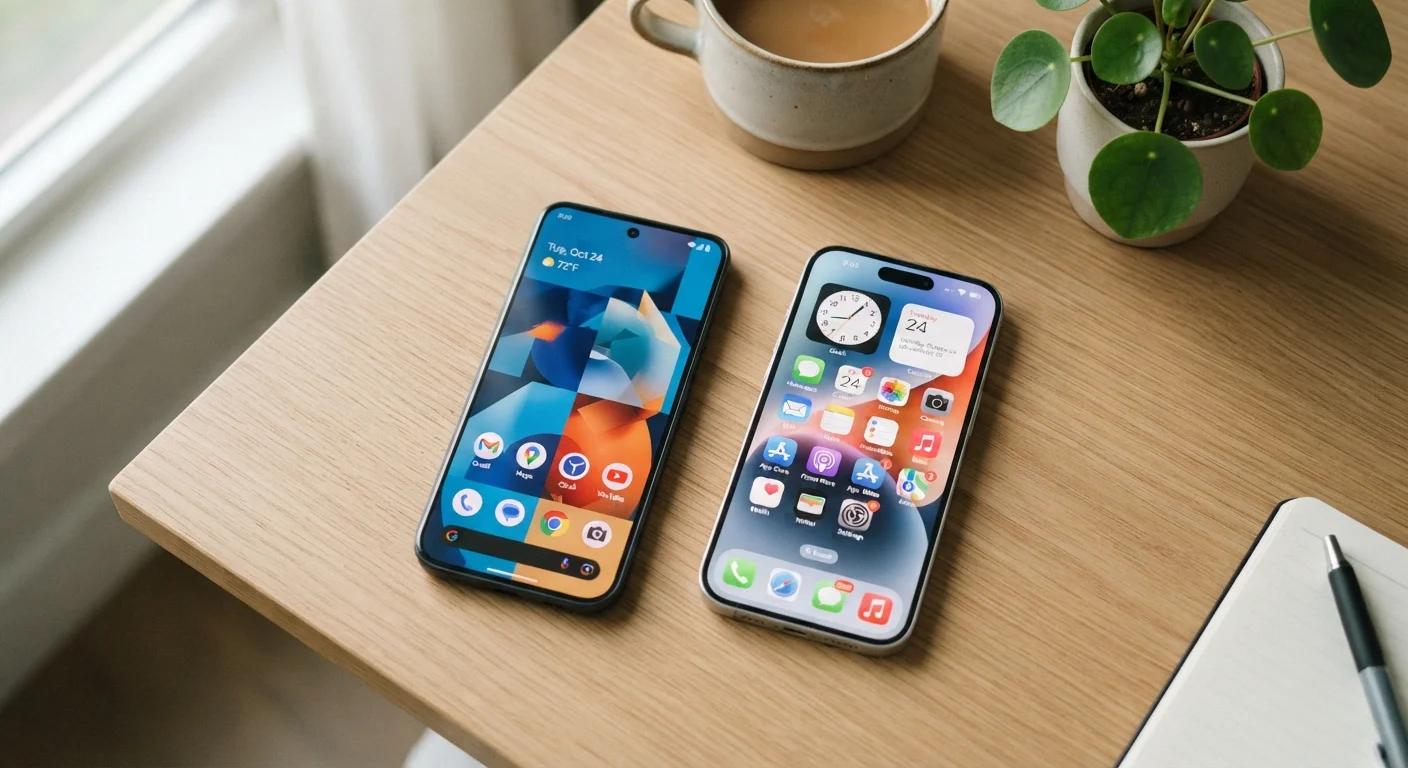
In practice, this means letting your phone's built-in cloud backup run automatically for day-to-day protection, while periodically connecting to a computer for a full local backup before a major event - switching phones, travelling, or performing a system update. For a closer look at how Android and iPhone handle backups differently by default, Android and iOS differ in meaningful ways worth understanding before you configure your settings.
If cost is a concern, local backup can serve as a free primary method while you evaluate whether a cloud subscription is worthwhile. For general thinking on managing digital subscription costs, the Saving Money hub offers approachable strategies. Ultimately, the backup plan you will actually follow consistently is more valuable than the theoretically perfect one you never quite get around to.