
Why Digital Clutter Accumulates So Quickly
Most people don't set out to create a chaotic digital environment. Files pile up because saving something takes one click, while organising it requires a decision. Photos scatter across gallery apps, chat downloads, and email attachments before anyone notices. Notes get jotted into whichever app was already open. The result - after months or years - is a system where finding anything takes longer than it should.
The good news is that getting organised doesn't require special software or a large time investment. It requires a simple structure you'll actually maintain, applied consistently across three areas: files, photos, and notes. Once those three are under control, most of the friction disappears.
For a broader look at how cloud services store your data across devices, the explainer on how cloud storage works provides useful background before you commit to a setup.
Your device's built-in file manager
Used to create, rename, and reorganise folder structures on your computer or phone.
A cloud storage service
Keeps your organised files accessible across multiple devices and acts as an off-device backup.
A single note-taking app
Centralises written notes, ideas, and lists so nothing gets lost across multiple apps.
Your platform's native photo app
Used to consolidate, deduplicate, and apply albums or tags to your photo collection.
What You'll Need Before Starting
This process works on any device - Windows PC, Mac, Android phone, or iPhone - and doesn't require purchasing any new tools. The tools below reflect what most people already have available.
What you will need
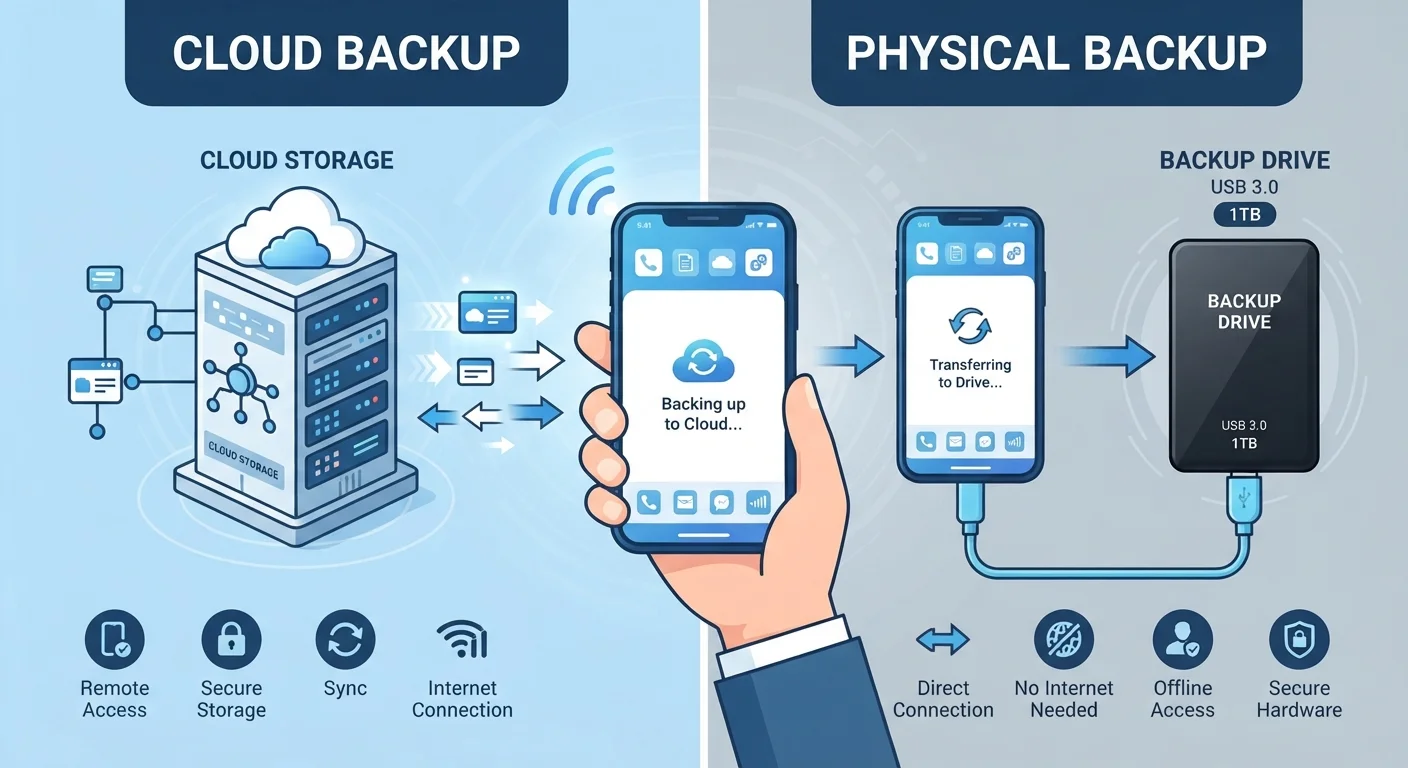
Once you've confirmed you have a backup in place, you're ready to follow the steps. If you're unsure about backup methods, the guide to cloud vs. local backups breaks down how each approach works.
Step-by-Step: Building Your System
Don't Delete Without Checking First
Before removing files or photos during a clean-up, make sure you have at least one backup copy stored somewhere separate - ideally not on the same device. Deleting something permanently from cloud storage can also remove it from all synced devices. When in doubt, archive rather than delete.
Audit what you currently have
Before creating any structure, spend ten minutes opening your Downloads folder, photo gallery, and main note-taking apps. You are not organising yet - just observing. Note roughly how many unsorted files exist, whether photos are spread across multiple apps or folders, and how many note-taking apps you actively use. This snapshot tells you where most of the clutter is concentrated so you can prioritise.
Build a simple, consistent folder structure
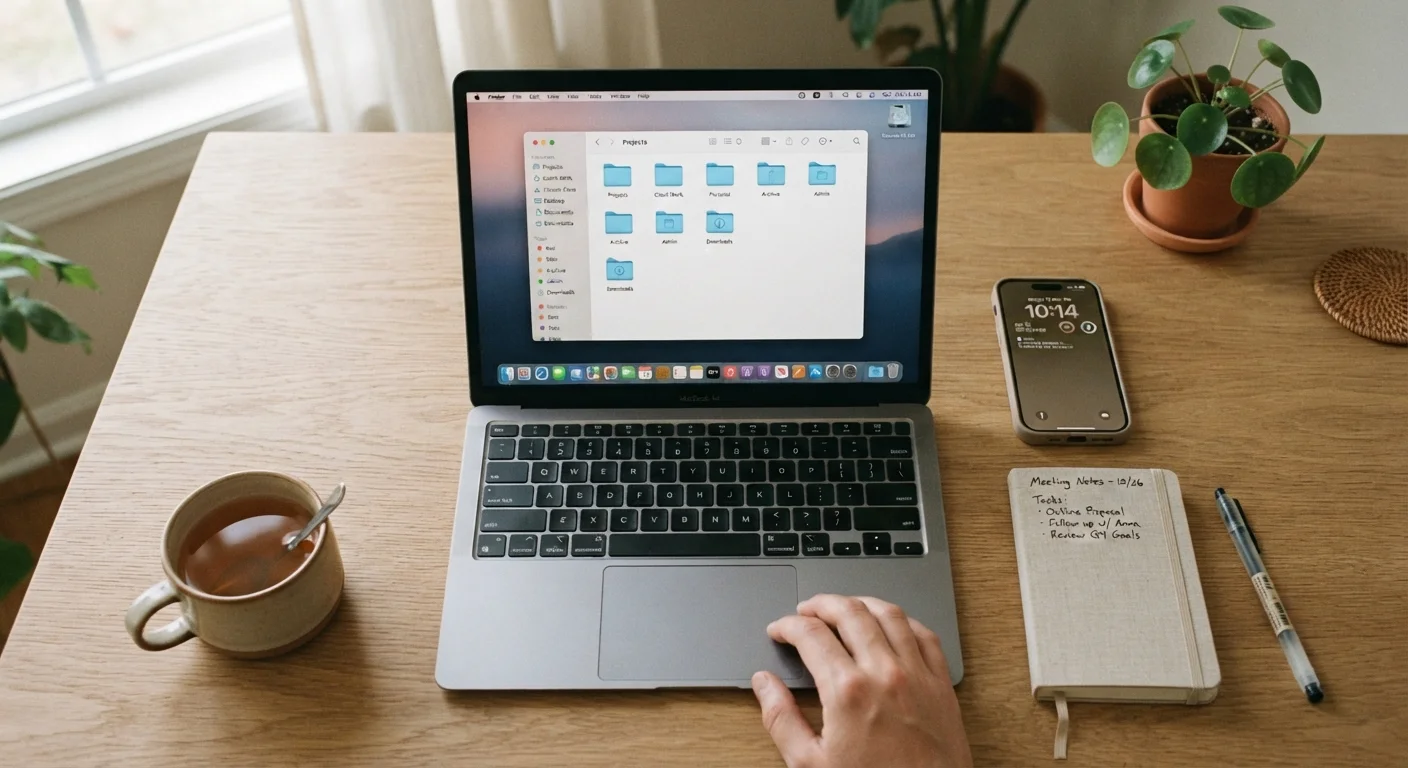
Create a top-level folder for each broad area of your life - for example: Work, Personal, Finance, Health, and Projects. Inside each, add only the sub-folders you actually need right now. Resist creating sub-folders speculatively. Every file should have an obvious home within two clicks.
Sort and relocate your existing files
Work through your Downloads folder and Desktop first - these are typically the most congested. Move each file into its new folder, rename anything with a vague title like document1.docx, and delete obvious junk (installer files you no longer need, duplicate downloads). Do this in short bursts of 15-20 minutes rather than one exhausting session.
Consolidate your photos into one place
Decide on one primary location for your photos - typically your phone's native gallery or a cloud photo service linked to it. Import any photos saved in messaging apps, email attachments, or secondary galleries into this single location. Then use albums or date-based folders to group them: by year at minimum, by event or trip if that feels useful. Remove obvious duplicates as you go.
Pick one notes app and migrate to it
Identify which note-taking app you reach for most naturally - the one you already open on instinct. That is your keeper. Copy any active, useful notes from other apps into it, then stop using the others for new content. Organise notes inside the app using notebooks or tags rather than a flat, unsorted list. Archive old notes rather than deleting them if you're unsure of their value.
Set a recurring maintenance habit
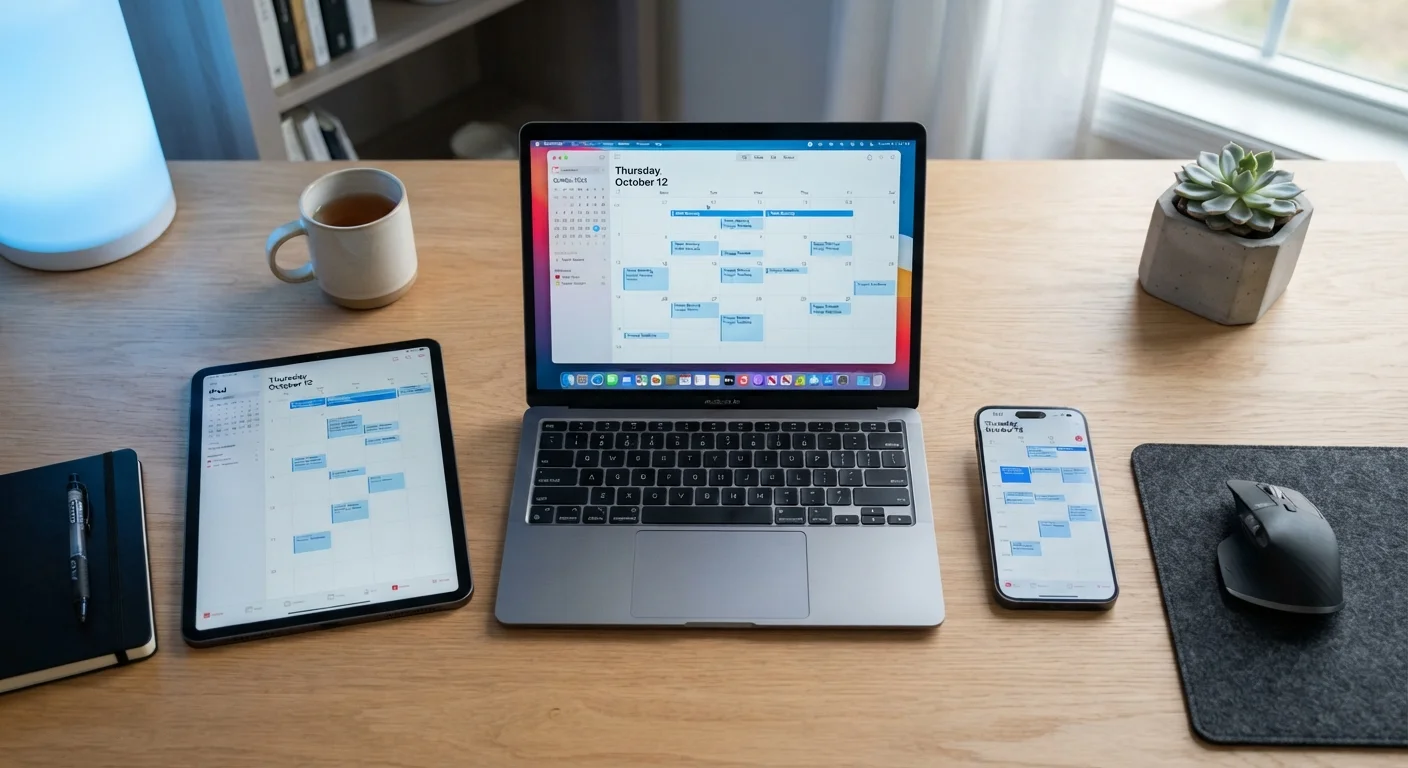
Schedule a ten-minute tidy every week - Friday afternoon works well for many people. Clear the Downloads folder, file away anything sitting on the Desktop, and archive completed notes. Pair this with your calendar routine if you already use one. Consistency matters far more than perfection; a brief weekly pass prevents the backlog from ever returning to its original size.
Use Date-Based Names for Ongoing Files
Prefix file names with the date in YYYY-MM-DD format (e.g. 2024-03-15_budget-draft.xlsx). This keeps files sorted chronologically in any folder view and makes it immediately clear which version is most recent - without renaming every file manually.
If syncing your organised files across devices later causes unexpected problems - missing folders or notes not updating - the troubleshooting guide for cross-device sync explains the most common causes and how to fix them.
Keeping the System Working Over Time
The most common reason organisation systems fail isn't a bad structure - it's that maintenance gets skipped when life gets busy. A filing system only stays useful if new files land in the right place consistently. That's why the habit in Step 6 matters as much as the initial sort.
If your digital organisation connects to household tasks or shared responsibilities, practical digital tools for shared household admin covers how to extend these habits into a shared context. And if managing your calendar is the next piece of the puzzle, getting started with digital calendars is a natural next step.
Avoid Creating Too Many Folders
A deeply nested folder structure - five or six levels deep - often becomes harder to navigate than a flat pile of files. Aim for two to three levels maximum: a top category, a sub-category, and the files themselves. The goal is to find things in under ten seconds, not to build a perfect taxonomy.
Apps themselves also accumulate over time. If your phone's app library has grown unwieldy, keeping your app library manageable offers habits that complement what you've done here.