
Why "Closing" an App Often Isn't Enough
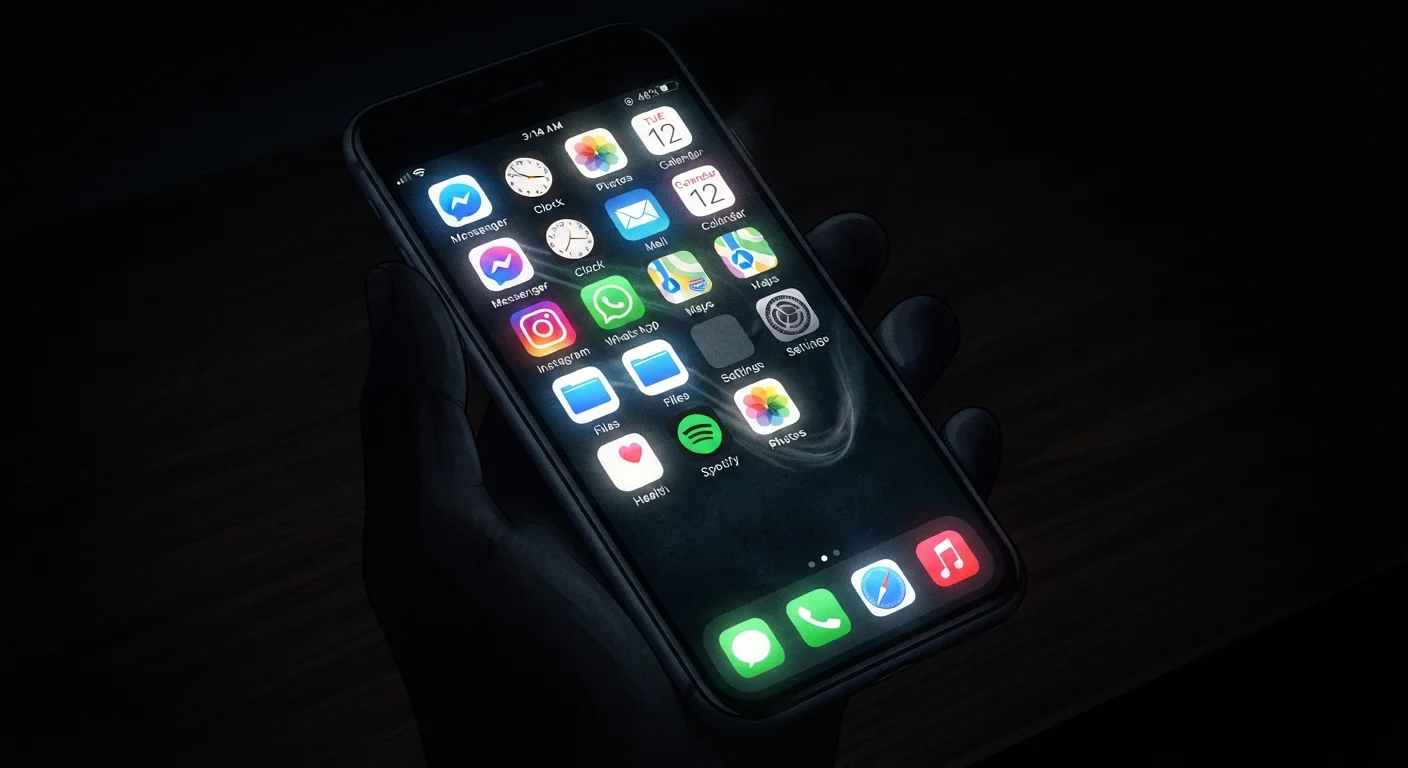
Most people assume that swiping an app away means it stops completely. In reality, modern smartphone operating systems are designed to keep apps in a semi-active state so they can respond quickly when you return to them. This approach improves the experience of switching between apps - but it also means certain processes keep running even after you've moved on.
When an app is in the background, it may be doing any of the following: checking for new emails, updating a social media feed, tracking your location for a map service, syncing calendar entries, or waiting to deliver a push notification. Some of this is genuinely useful. Other activity happens simply because the app is allowed to - not because you need it to.
Understanding this distinction is the first step toward taking back control of your battery and data. See our guide to everyday habits that drain battery faster for a broader look at what's silently costing you power.
What Background Activity Actually Looks Like
Background app activity falls into a few categories, each with different effects on your phone:
- Background refresh: An app periodically wakes up to fetch new content - for example, a news app downloading the latest headlines so they appear instantly when you open it.
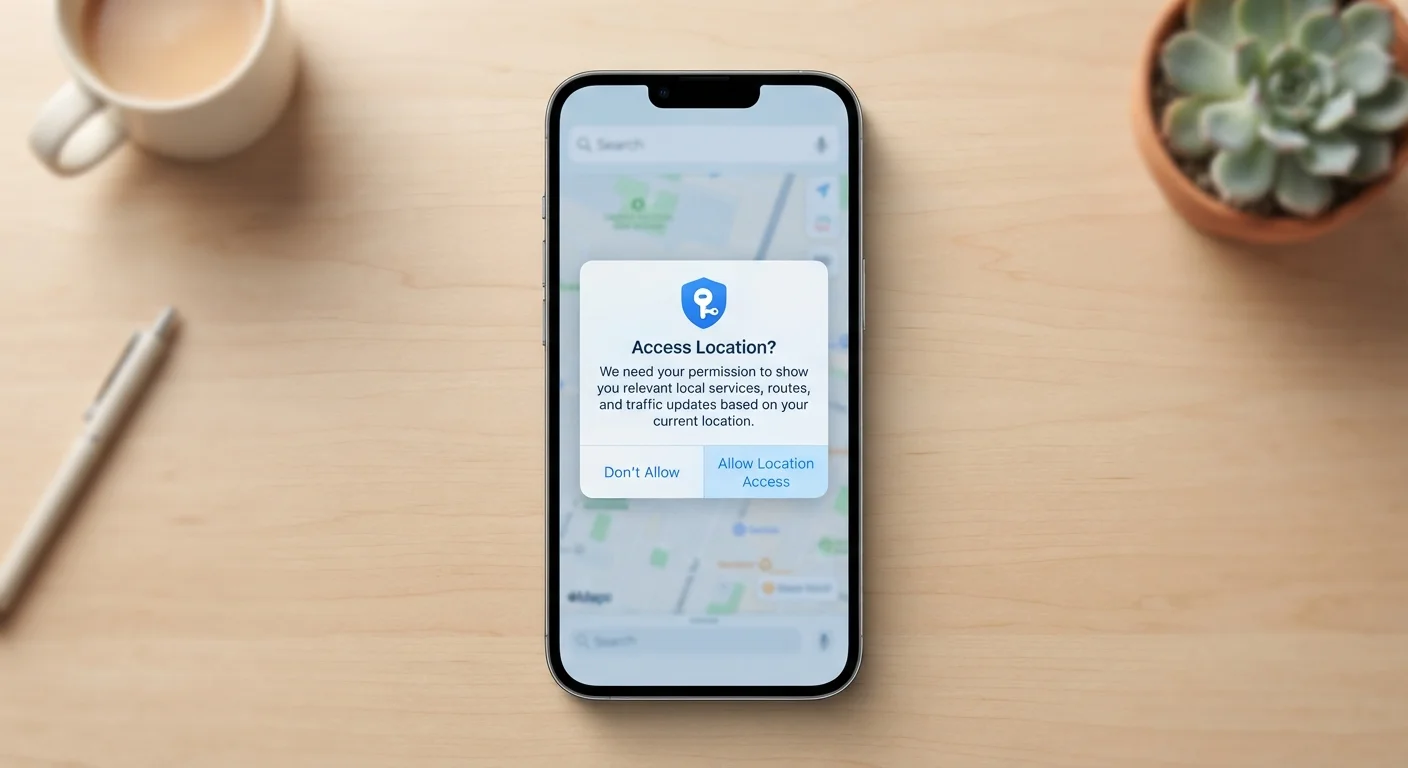
- Location tracking: Navigation and weather apps may continuously access your GPS even when you're not using them, which is one of the heaviest battery draws available to any app.
- Push notifications: A persistent connection to a server allows apps like messaging services to alert you the moment something new arrives. This is relatively efficient compared to constant polling.
- Data syncing: Cloud storage, email, and productivity apps regularly sync files and data in the background to keep everything up to date across your devices.
~20-30%
Battery drain attributed to background apps
Estimates from mobile operating system research suggest background processes commonly account for a significant share of daily battery consumption, though exact figures vary by device and usage pattern.
Top 3
Common background battery drains
Location services, email syncing, and social media refresh are consistently cited by smartphone manufacturers as the leading sources of background battery use.
Apps also vary in how aggressively they behave. Some are well-optimised and barely touch your battery; others run frequently even when there's no meaningful reason to do so. Your phone's built-in battery usage screen is the most reliable way to identify which apps fall into which category.
How to Control Background Activity on Your Phone
Both Android and iOS include controls that let you limit or block background activity on a per-app basis. Here's where to look:
On iPhone (iOS)
- Open Settings and tap General.
- Tap Background App Refresh.
- You can turn it off entirely, restrict it to Wi-Fi only, or disable it for specific apps individually.
On Android
- Open Settings and go to Battery (or Battery & Device Care on some Samsung devices).
- Look for Background usage limits or Battery optimization.
- You can also navigate to Settings > Apps, select a specific app, and restrict its background data or activity there.
Check Battery Usage Weekly
Open your phone's battery settings and sort apps by background battery consumption. If an app you rarely use appears near the top, it's a strong candidate for having its background refresh disabled. This takes under two minutes and can make a noticeable difference to how long your phone lasts through the day.
It's worth checking your phone's battery usage screen (usually under Settings > Battery) every week or two. Look for any app consuming a large share of battery while you weren't actively using it - that's a sign it's running more than it needs to. You can also control how much data background apps consume by enabling Low Data Mode (iOS) or Data Saver (Android) in your network settings.
For a related angle, our article on what app permissions actually mean explains how location and other access rights connect directly to background behaviour.
Finding the Right Balance
Not all background activity is worth restricting. Messaging apps need background access to deliver notifications reliably. A calendar app syncing appointments in the background saves you from missing meetings. The goal isn't to turn everything off - it's to make deliberate choices about which apps have earned that trust.
A practical approach: allow background activity for apps you depend on for timely information (messages, calendar, navigation), and restrict it for apps where a slight delay on opening is acceptable (social media, shopping, entertainment). This alone can meaningfully extend the time between charges without disrupting your daily routine.
It's also worth noting that many common battery habits are based on outdated advice - including the idea that aggressively force-closing every app improves battery life. On modern phones, that's rarely true, and can sometimes cause more restarts and therefore more battery use.
Taking fifteen minutes to review your background app settings is one of the most straightforward ways to get more out of each charge and keep your mobile data bill predictable.
This article is for general informational purposes only. App behaviour and settings menus vary between device manufacturers and operating system versions. Refer to your device's official documentation for model-specific guidance.