
Why Sync Breaks in the First Place
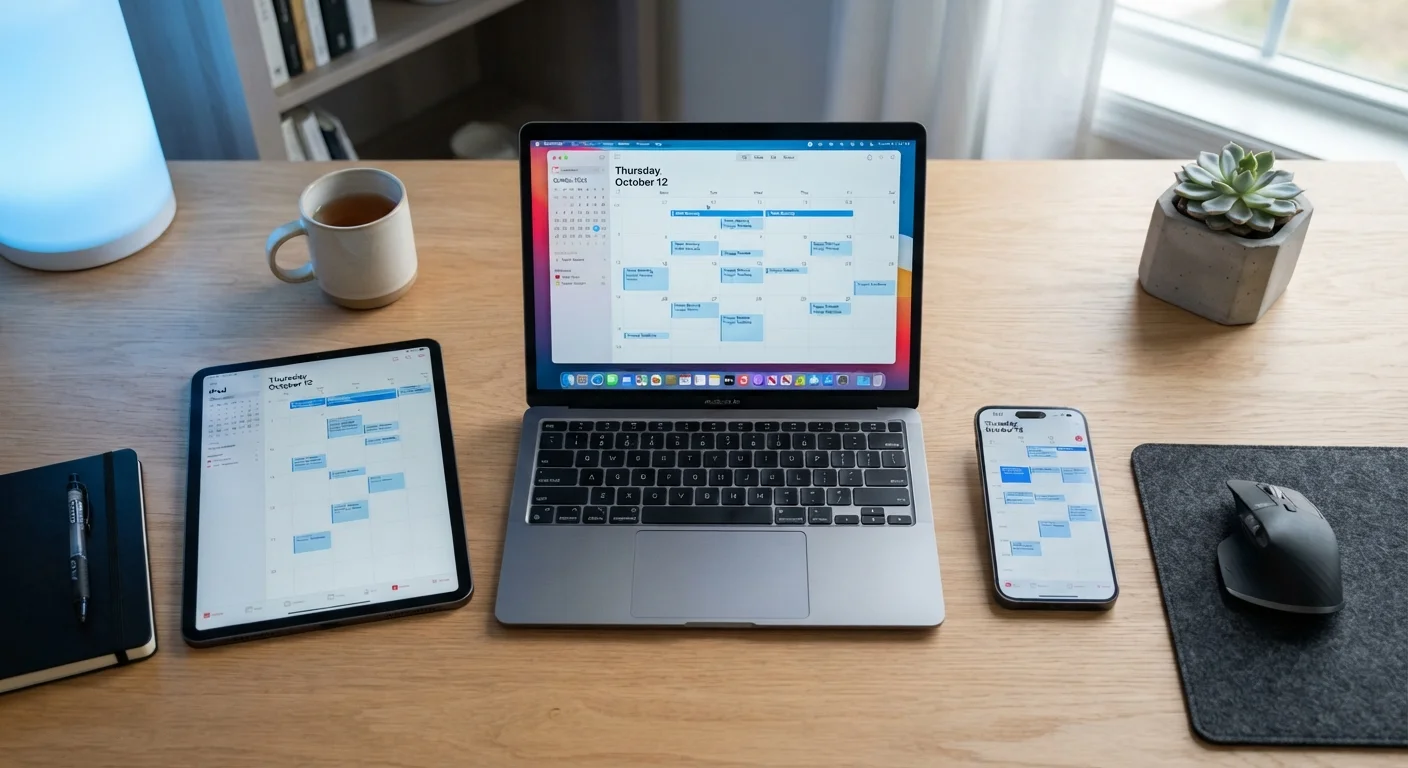
Cross-device sync sounds simple: you save a note on your phone and it appears on your laptop within seconds. In practice, several invisible dependencies have to work together - your account login, an active internet connection, available cloud storage, and the correct settings on every device involved. When any one of these slips, sync quietly stops.
The most common culprits are:
- Account sign-out: A system update or app reinstall can log you out without a clear notification, so the device no longer knows where to send your data.
- Disabled sync toggles: Both Android and iOS have per-app sync settings that can be accidentally turned off, especially after a major OS update.
- Full cloud storage: Google, Apple, and Microsoft all enforce storage limits. Once your quota is full, new data cannot upload - but existing data on other devices stays put, making the problem hard to spot.
- Poor connectivity: Sync often requires a stable connection. Weak mobile data or a restricted Wi-Fi network (common in workplaces or public spaces) can pause the process silently.
- App-level bugs: Occasionally a specific app version introduces a sync regression. In these cases, an app update is the only fix.
Understanding the cause matters because the fix differs in each case. Working through a short checklist is faster than guessing.
Sync Is Not the Same as Backup
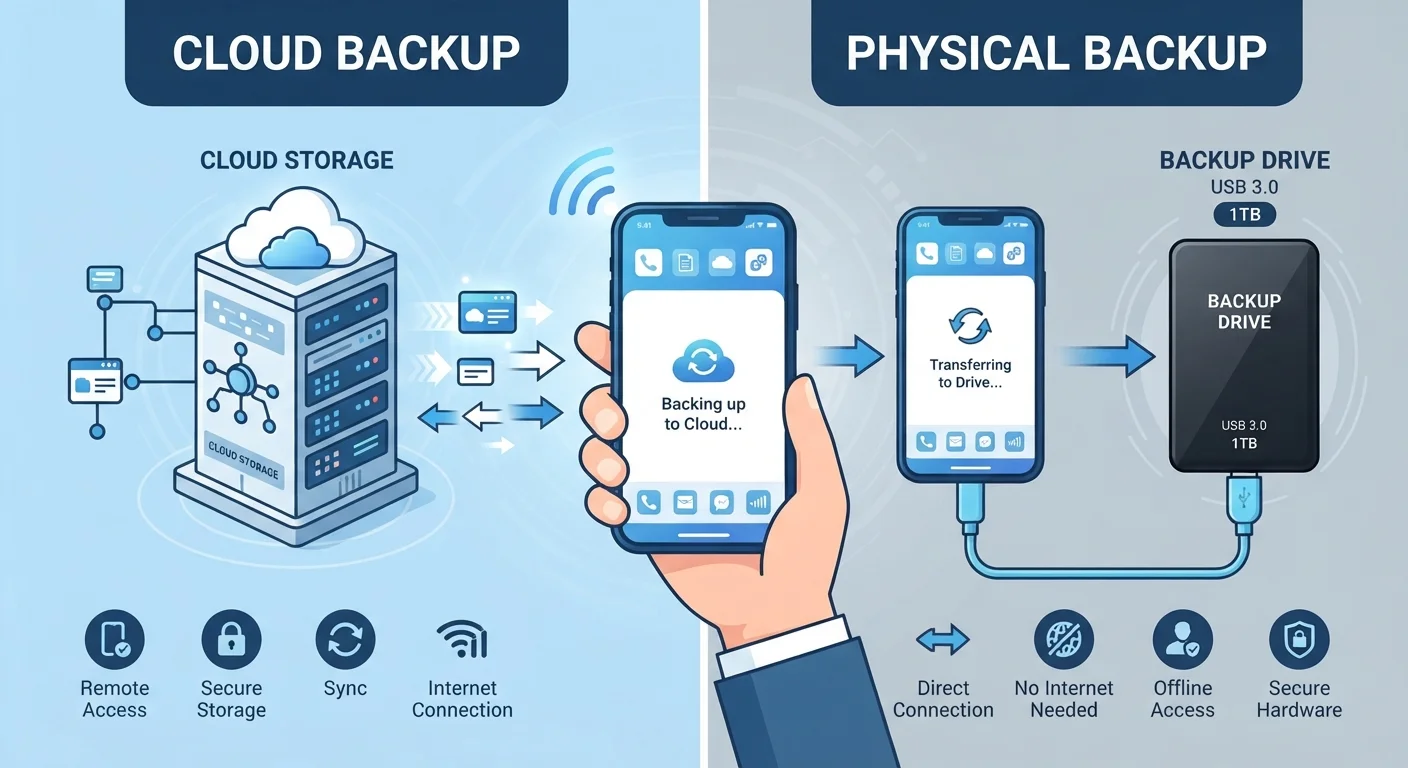
Sync keeps your data consistent across multiple active devices in real time. Backup creates a stored copy you can restore from if something goes wrong. Both are valuable but solve different problems. Relying on sync alone means that if you delete a file on one device, it disappears everywhere.
What You Will Need Before Starting
Before running through the steps below, make sure you have the following ready:
What you will need
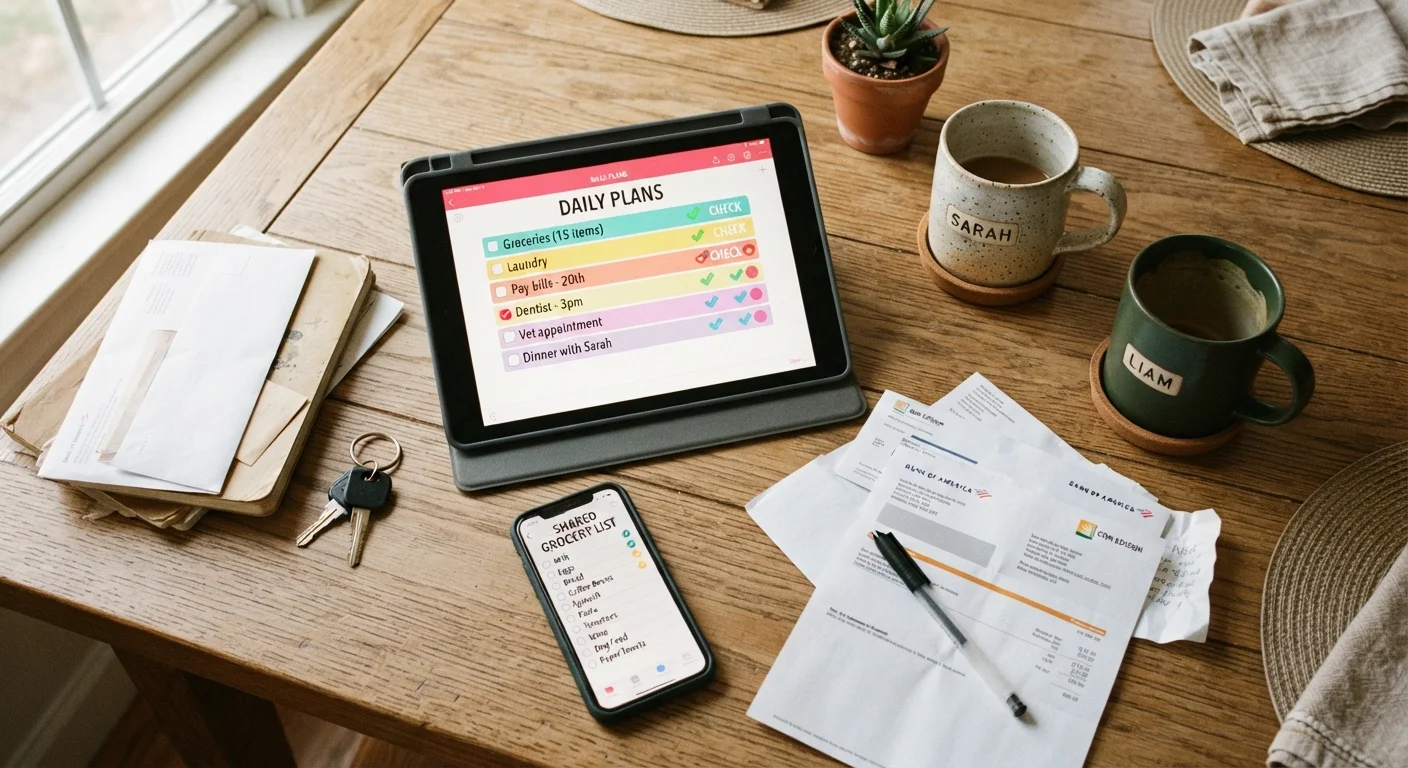
If you are troubleshooting sync for a shared household tool - such as a shared grocery list or family calendar - also check whether the person who originally set up the shared account is still logged in on their device. See our guide to shared household apps for context on how collaborative tools handle accounts.
Step-by-Step: Restoring Sync on Your Devices
Work through the steps in order. Most users find that steps one through three solve the problem without needing to go further.
Confirm you are signed in to the correct account
Open the app that is not syncing and navigate to its account or profile section. Verify the email address shown matches the account you used to create your data. On iOS, also check Settings → [Your Name] to confirm your Apple ID is active. On Android, go to Settings → Accounts and check each listed account.
Check that sync is enabled for the app
On Android: go to Settings → Accounts → select your account → tap the relevant service and ensure the sync toggle is on. On iOS: go to Settings → [Your Name] → iCloud (or the relevant app) and confirm the toggle next to the app is enabled. For third-party apps like Microsoft Outlook or Notion, also check within the app's own settings menu under Account or Sync.
Check your available cloud storage
On Google: visit one.google.com/storage in a browser. On Apple: Settings → [Your Name] → iCloud → Manage Storage. On Microsoft: onedrive.live.com → account settings. If storage is at or near 100%, delete unneeded files or increase your storage plan before restarting sync.
Force a manual sync or refresh
Many apps allow you to trigger sync manually rather than waiting for the automatic interval. In Google Calendar, pull down on the main view to refresh. In Apple Notes, go to the folder list and pull down. In Outlook, tap the refresh icon in the folder view. After triggering, wait up to two minutes before checking whether new data has appeared.
Sign out, then sign back in
If the above steps have not worked, sign out of the account within the app (not from the whole device), then sign back in. This clears any corrupted authentication tokens that can silently block sync. After signing back in, allow a few minutes for the initial sync to complete - the app needs to re-download your data from the cloud.
Avoid Factory Resets as a First Step
Some online advice suggests resetting your device to fix persistent sync issues. This is rarely necessary and risks losing data that has not yet synced. Always work through account, settings, and storage checks before considering a reset. If you do need to reset, ensure a full backup exists first.
When Sync Issues Point to a Bigger Problem
If none of the steps above restore sync, the issue may be deeper than settings. A few scenarios worth knowing about:
- Data was never backed up: Sync and backup are related but different. Sync keeps data consistent across devices in real time; backup creates a recoverable copy. If a device was offline for a long time before being reset, some data may not have synced and therefore cannot be recovered from the cloud. Our article on cloud backup vs. local backup explains the difference clearly.
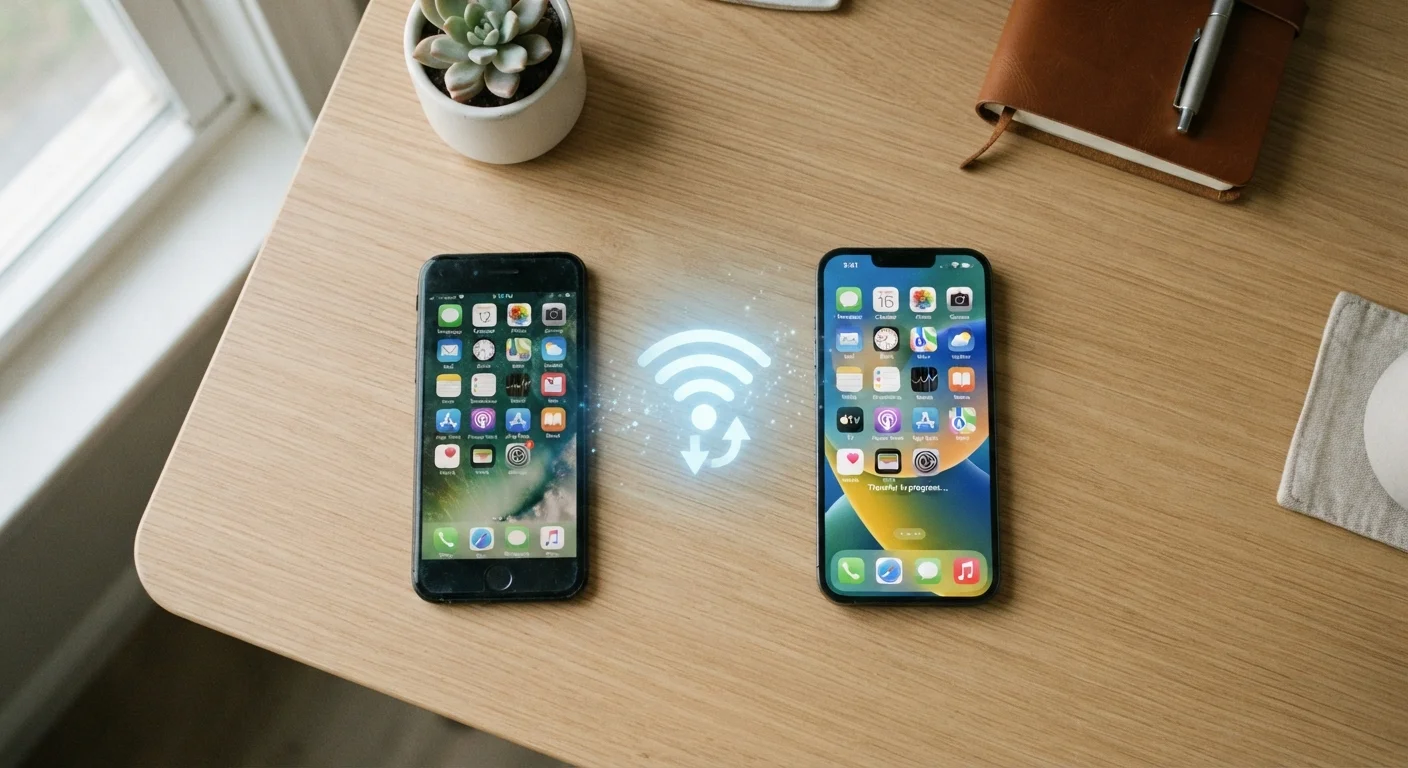
- You recently switched phones: New devices sometimes require you to manually enable sync for each service. If you have just moved to a new handset, setting up a new smartphone correctly from the start prevents these gaps.
- The service itself is down: Check the provider's status page (Google Workspace Status, Apple System Status, or Microsoft Service Health) to rule out a temporary outage on their end.
Sync problems are almost never a sign of permanent data loss. Patience and methodical checking resolve the vast majority of cases.