
Why These Settings Go Untouched
When you install an app, the default settings are rarely chosen with your privacy in mind. They're typically set to collect as much data as the developer is permitted to gather. Because most people move quickly through setup screens, those defaults stick - sometimes for years.
The result is a quiet accumulation of data sharing you may never have consciously agreed to. Ad identifiers stay active, location history builds up, and contact lists get synced to remote servers - all without anyone doing anything obviously wrong. The settings exist; they're just not easy to find.
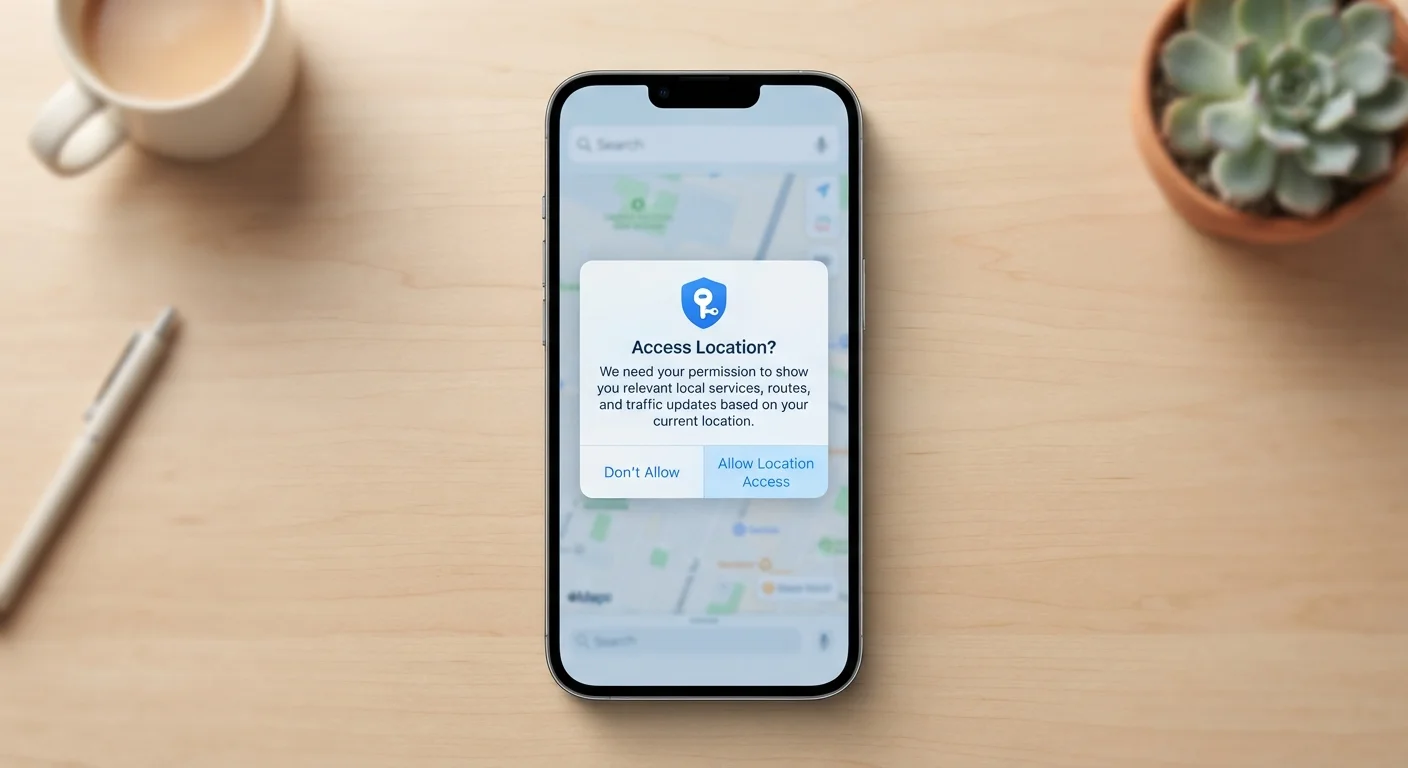
This checklist is designed to change that. It covers the categories of settings most worth reviewing across the apps on your phone, regardless of which specific apps you use. For a broader look at what permissions mean in the first place, see what each app permission actually grants.
Location Access
Ad Tracking and Personalisation
Data Sharing and Third-Party Access
Camera, Microphone, and Contacts
Account and Profile Visibility
Stored and Cached Data
How to Work Through This Checklist
You don't need to do this in one sitting. A practical approach is to pick one category - say, social media apps - and spend ten minutes going through those settings before moving to another category another day.
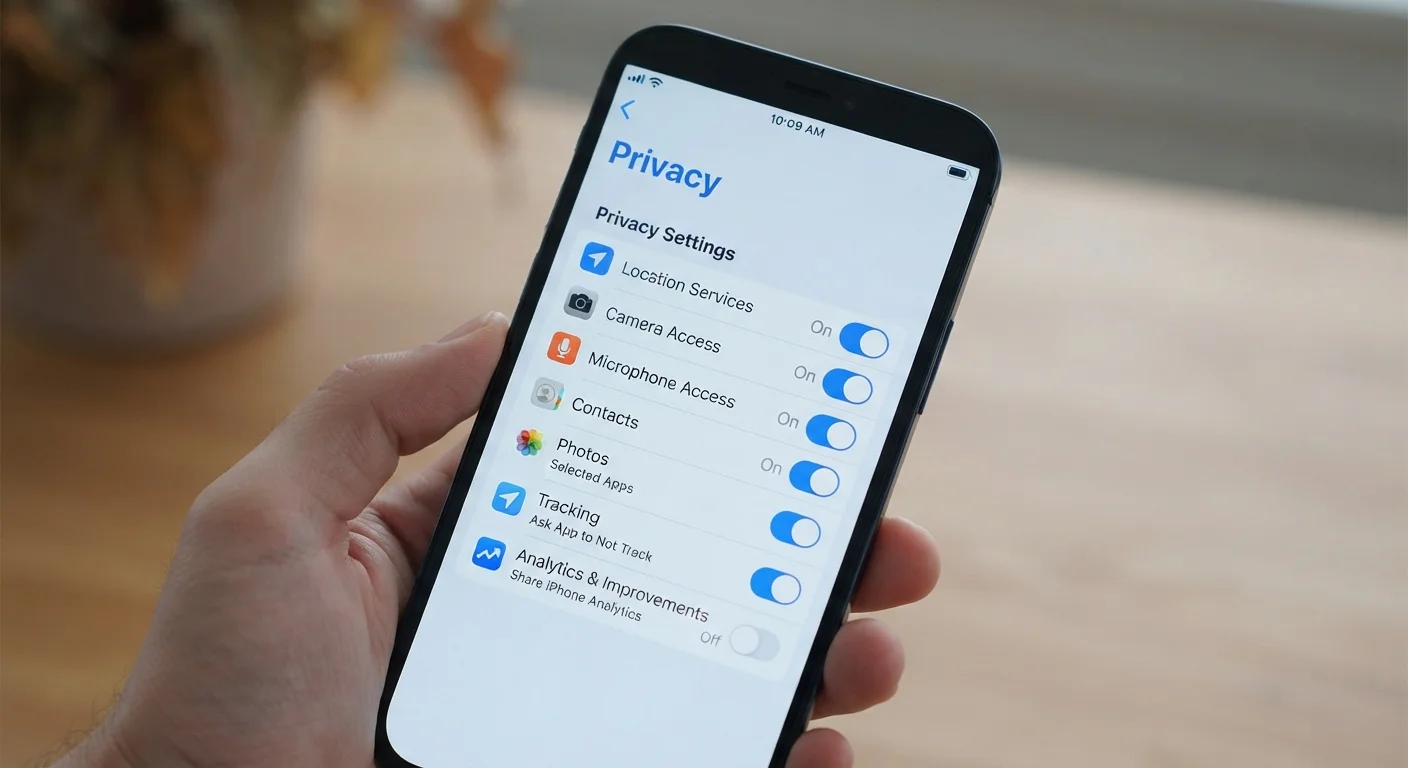
Your phone's system Settings app
Provides a central view of all app permissions - location, camera, microphone, contacts - so you can audit multiple apps from one place rather than opening each individually.
In-app privacy or data settings
Each app's own settings menu often contains options not visible from your phone's system settings, including ad preferences, data sharing toggles, and connected account management.
Password manager
Useful for tracking which third-party services you've signed into using a main account, helping you identify connected apps to review or revoke.
Start with the apps you use most often, since those collect the most data over time. After your first review, blocking out 20-30 minutes once a year is usually enough to stay on top of changes, since apps frequently update their settings menus and occasionally introduce new data-sharing options.
Settings Menus Change With App Updates
App developers frequently reorganise their settings as part of updates, so the path to a particular option may shift between versions. If a setting described in general guidance seems to have moved, look for a "Privacy," "Data," or "Security" section within the app's main settings menu. Some platforms also move sensitive options deeper into sub-menus over time, so patience and a methodical search pays off.
If you find that your app library has grown unwieldy and you're not sure which apps to prioritise, managing your app library over time is a useful companion exercise. For a more comprehensive account security review, the personal data security audit checklist covers passwords, recovery settings, and more in one place.
It's also worth noting that toggling a social platform's visibility settings to a more restricted option doesn't always mean what you might expect - how social media privacy controls actually work explains the real limits of those controls.
Changing Settings Won't Erase Past Data
Adjusting your privacy settings going forward does not automatically delete data that has already been collected. If you want to request deletion of historical data, look for a "Delete my data" or "Download and delete" option within the app or the platform's privacy centre. In many cases, you can submit a formal data deletion request under applicable data protection rules - check the app's privacy policy for instructions specific to your region.