
How the Notification Permission System Works
When you install an app for the first time, it typically asks: "Allow to send you notifications?" Tapping Allow grants the app a persistent ticket to interrupt your day. Tapping Don't Allow blocks it completely. This single moment - easy to tap past without thinking - is the root cause of most notification overload.
Both Android and iOS operate a centralized notification permission layer. This means that your device's Settings app keeps a master list of every app and its current notification status. You are always in control of that list, even after you have agreed to alerts during setup. Permissions can be revoked at any time without affecting the app's other functions.
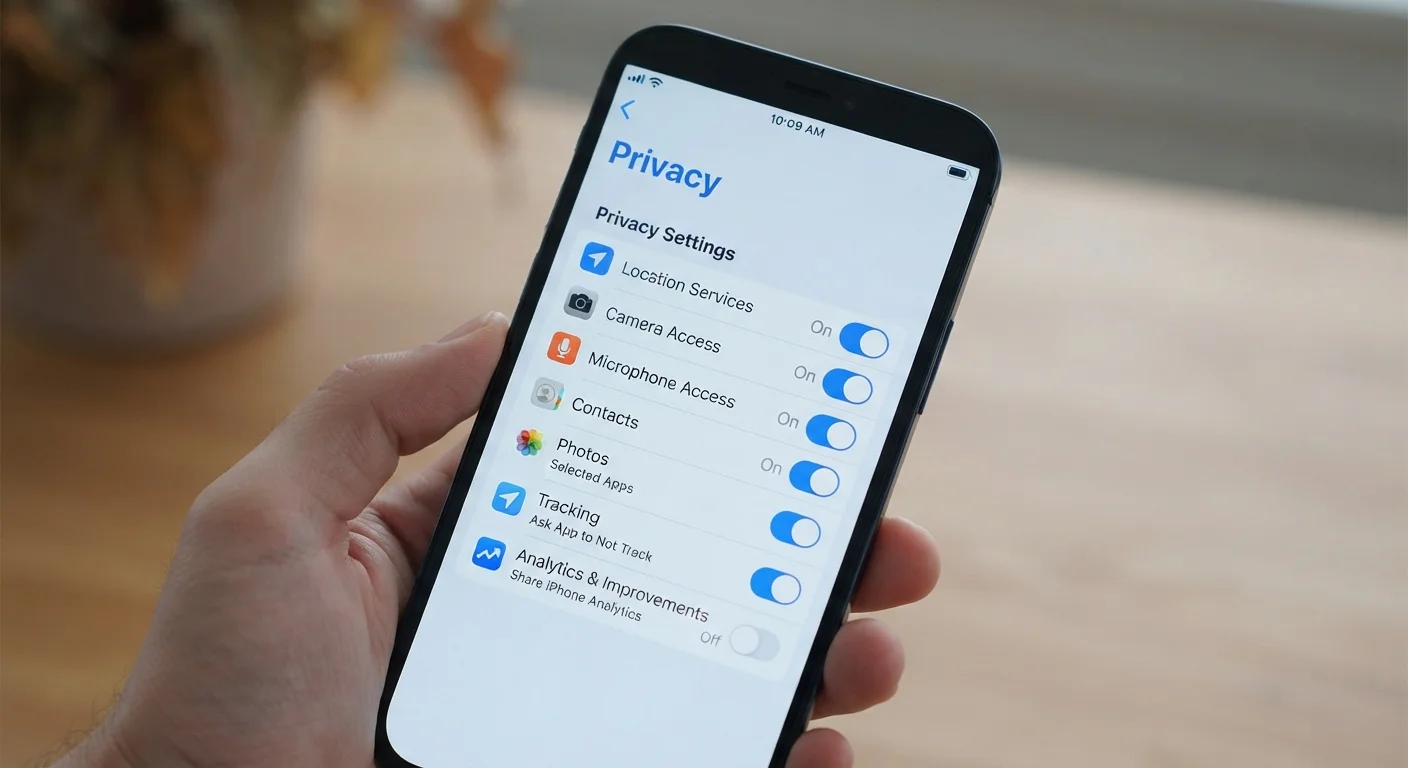
For a broader look at what other access you may have granted without realizing it, see app privacy settings worth reviewing.
Re-Granting Permission Is Always Possible
Many people hesitate to deny notification permissions because they worry about missing something important later. In practice, if you change your mind, you can re-enable notifications for any app at any time through your device's Settings. There is no penalty for experimenting with what works for you.
The Different Types of Notification Alerts
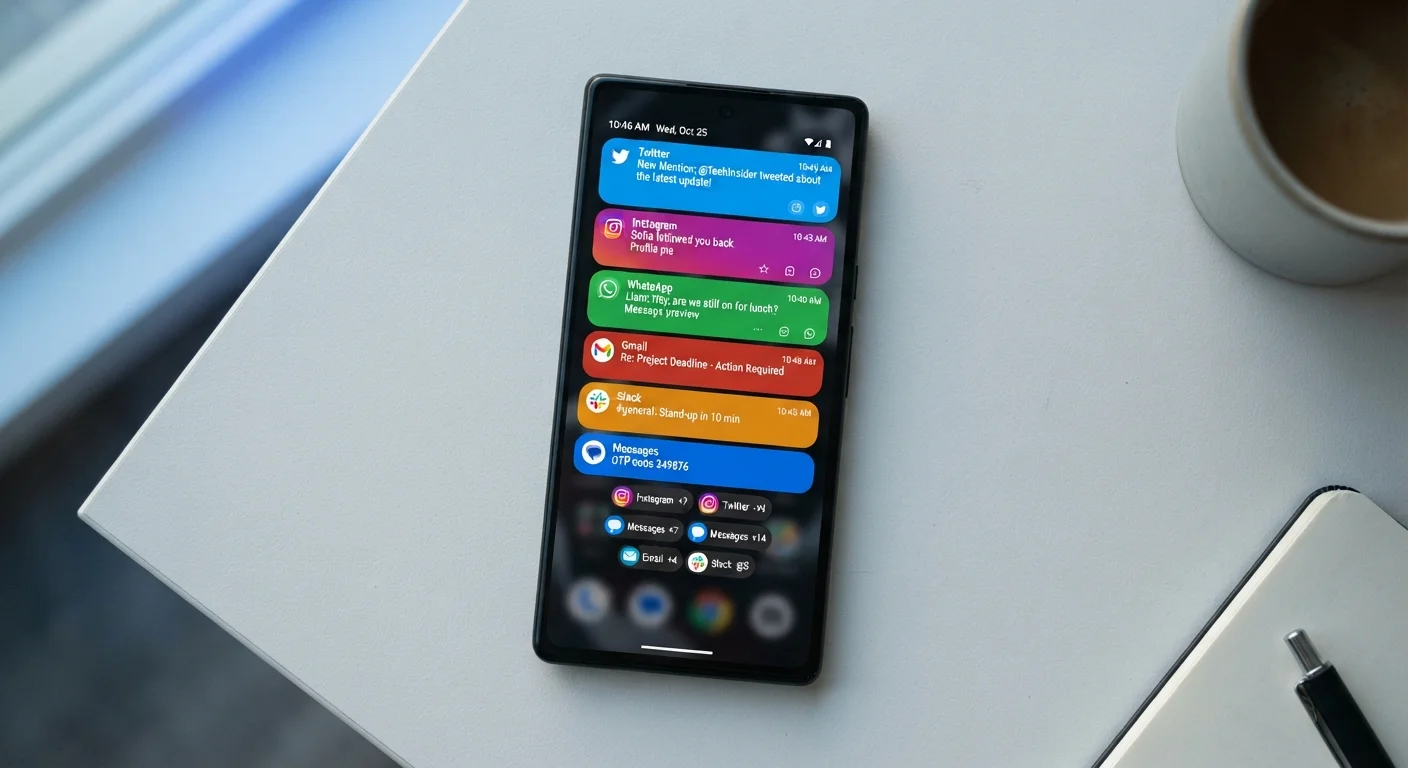
Not all notifications look or sound the same. Understanding the formats helps you decide which ones are worth keeping on.
- Lock screen notifications: Messages displayed on your screen while the phone is locked. Useful for at-a-glance updates, but visible to anyone nearby.
- Banner alerts: A strip that slides down from the top of the screen while you're using your phone. They disappear after a few seconds.
- Sound and vibration: Audible or tactile alerts that interrupt whatever you're doing. These can be configured independently from the visual alert.
- Badge icons: The red numbered dot on an app icon indicating unread items. These are silent but persist until you open the app.
- Notification Center: A scrollable history of all recent notifications, accessible by swiping down on most devices. Nothing is lost if you miss a banner.
Each of these formats can usually be enabled or disabled separately for every app in your settings. You might, for example, keep badge icons turned on for your email app while turning off all sounds and banners.
Start With Sound, Not the Full Setting
If you're not ready to turn off notifications entirely for an app, try disabling sound and vibration first. Silent visual alerts are far less disruptive and still keep you informed. This single change can dramatically reduce how often your focus is broken throughout the day.
Why Apps Send So Many Alerts - and What You Can Do
Notifications are not purely functional. Many apps use them as a re-engagement tool: a way to bring you back to the app even when you have nothing genuinely urgent waiting. News apps alert you about breaking stories around the clock. Shopping apps push sale reminders. Social platforms notify you when someone reacts to an old post.
This is by design. Research into digital habits consistently finds that people open apps more frequently in response to notifications, which benefits apps that depend on active users for advertising revenue.
80+
Average daily notifications received per smartphone user
Research by app analytics firms has consistently found that smartphone users in developed markets receive more than 80 push notifications per day on average.
~46%
Notifications that go unopened
Studies of push notification open rates suggest that roughly half of all alerts sent by apps are never tapped, indicating many are not providing real value to the recipient.
Regaining control starts with a simple audit. Go to Settings > Notifications on your device and scroll through every app that has permission to alert you. For each one, ask: Has this notification ever given me genuinely useful information? If the answer is no, disable it. Most people find they can eliminate alerts for the majority of installed apps without noticing any inconvenience.
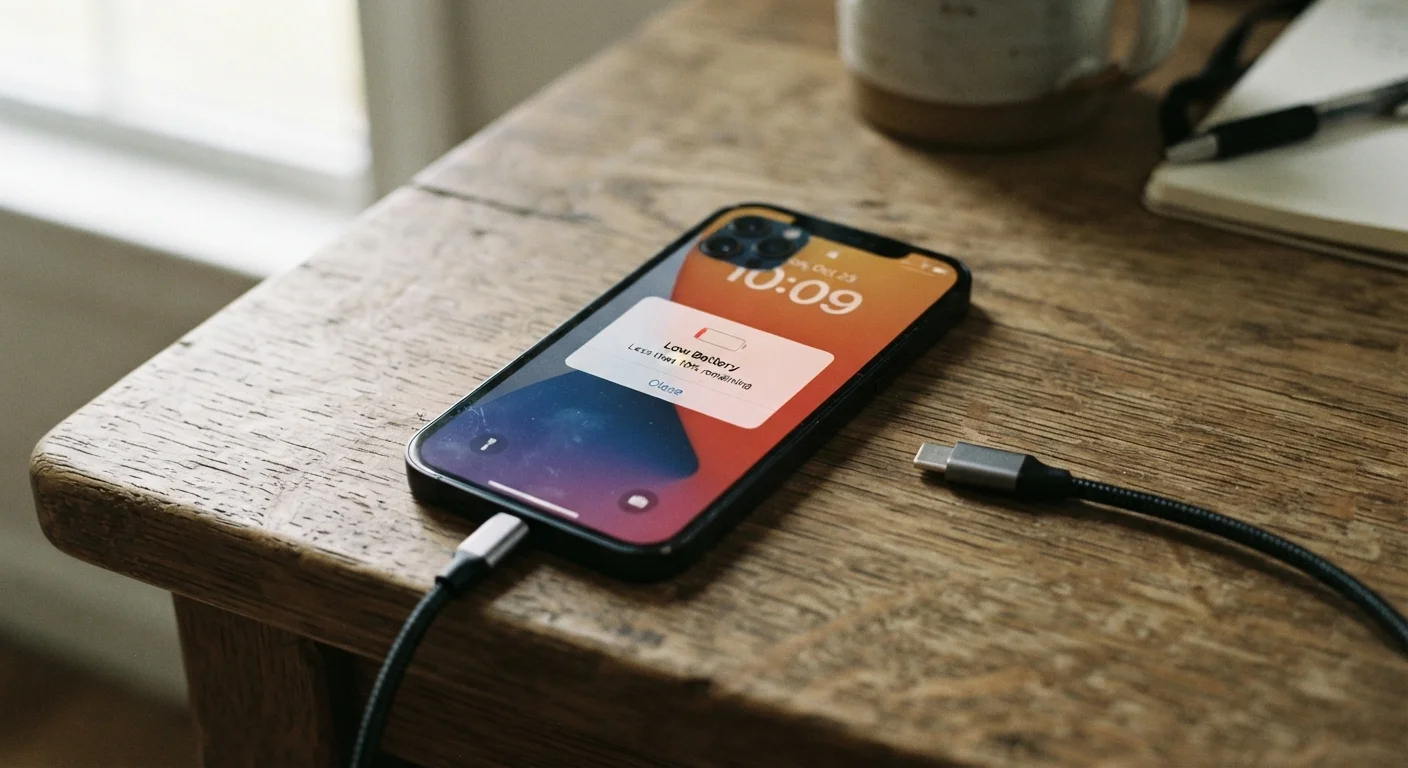
Note that frequent push notifications can also contribute to faster battery drain - something worth keeping in mind if you notice your charge not lasting as long as expected. You can read more about this in our article on habits that drain your phone battery faster.
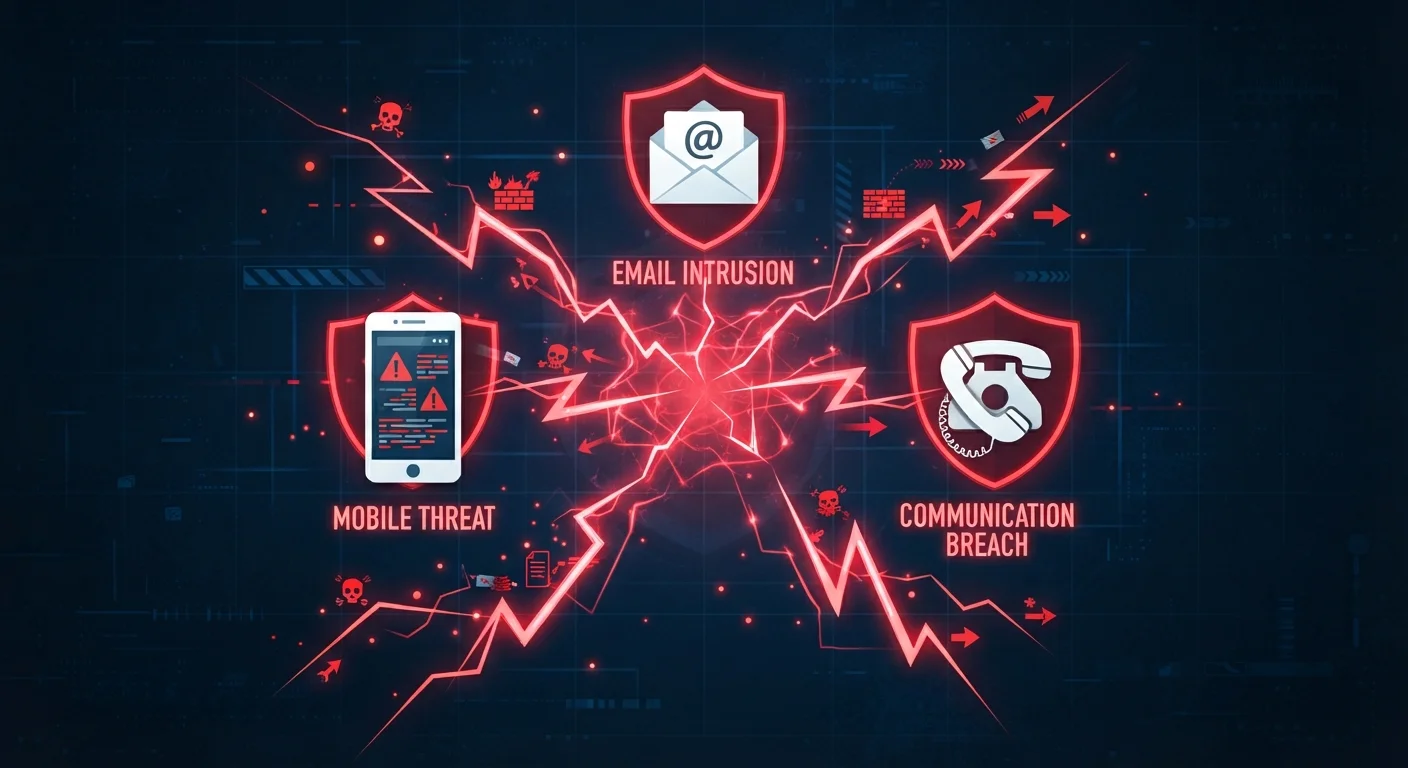
Also be alert to suspicious notifications. Unexpected alerts asking you to verify an account or claim a reward can be phishing attempts delivered through compromised or deceptive apps. For context on how these scams work across different channels, see how phishing, smishing, and vishing reach you.
Practical Steps to Manage Notifications Effectively
Rather than turning everything off in frustration, a tiered approach works better for most people.
- Audit once a month: Spend five minutes in Settings > Notifications and disable alerts from apps you haven't consciously wanted to hear from.
- Use Do Not Disturb or Focus modes: Schedule quiet periods - such as during sleep, meals, or work - so that only priority contacts can reach you.
- Disable sounds but keep badges: For lower-priority apps like email, silent badge icons let you check in on your schedule rather than being interrupted.
- Turn off lock screen display for sensitive apps: Banking or health apps may contain information you don't want visible to others. Keep their alerts private by disabling lock screen preview.
Understanding notification permissions is closely linked to understanding the broader permissions your apps hold. If you haven't reviewed what access your apps have beyond notifications, decoding smartphone app permissions is a practical next step.