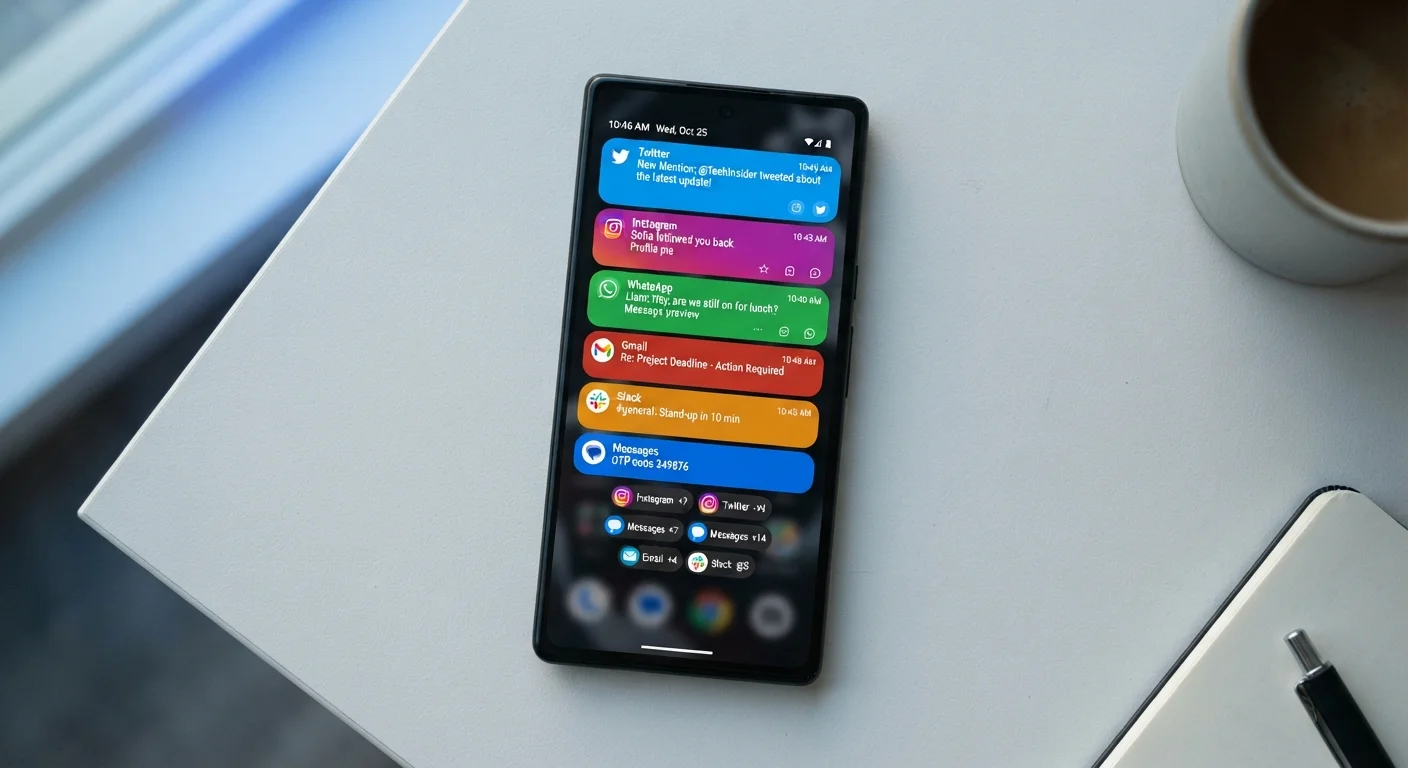

Why Notifications Feel Out of Control
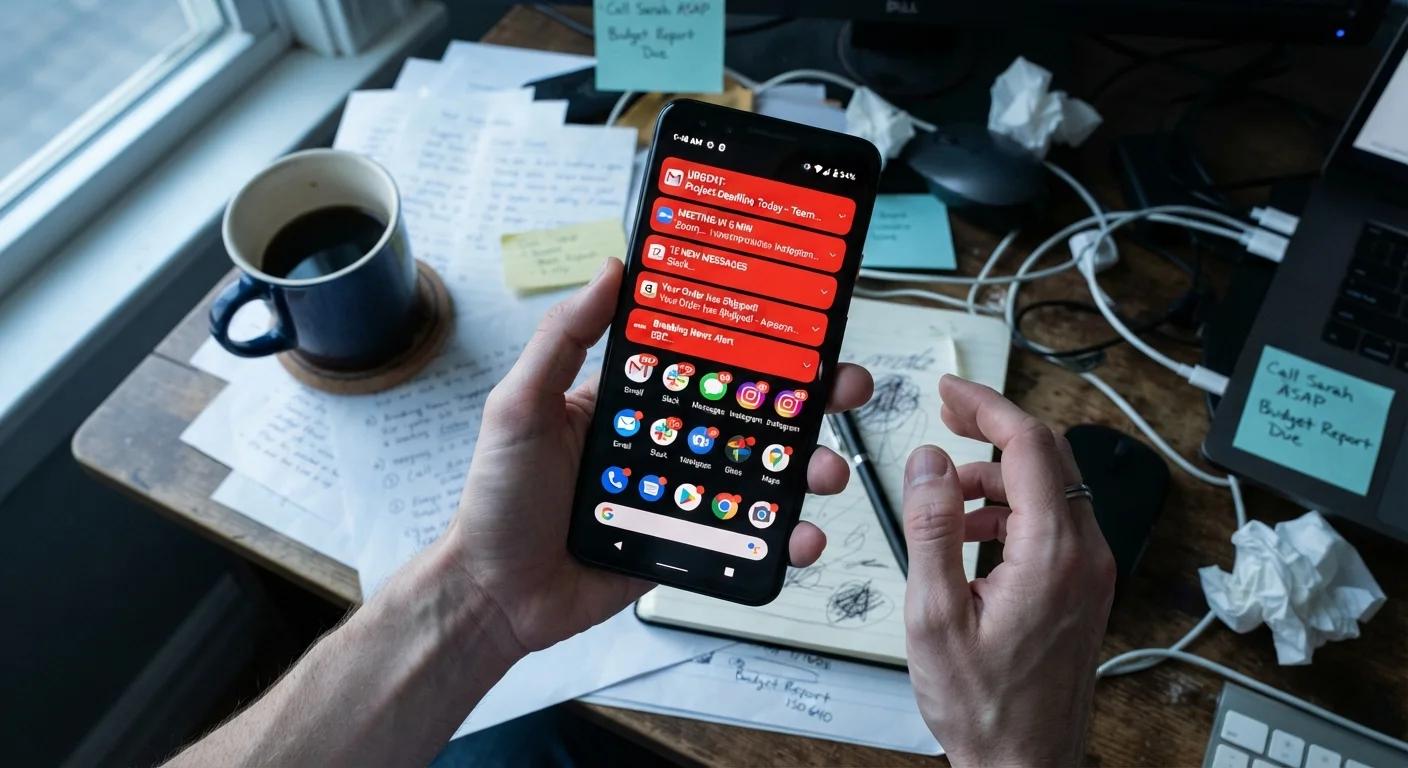
Most people's notification settings were never consciously chosen - they accumulated over time, one install at a time. Every new app requests permission to send alerts, and tapping "Allow" takes a fraction of a second. Multiply that across dozens of apps and the result is an endless stream of interruptions that feel inevitable but are entirely optional.
Understanding why this happens is the first step. Notifications are designed to pull you back into an app. That's a commercial incentive, not a user-experience decision made with your attention in mind. Once you see them that way, managing them becomes straightforward. For a deeper look at how the permission system actually works, see how phone notifications are structured.
Allowing notifications for every app during setup without reviewing what each app actually needs to send.
Why it happens: The "Allow" prompt appears immediately at install, before you have any experience with the app. It feels like a necessary step to get the app working.
Treating all notification types as identical and either accepting or blocking all of them at once.
Why it happens: Most people don't realise that sounds, banners, lock-screen previews, and badge counts each carry a different attention cost and can be configured independently.
Never revisiting notification permissions after an initial setup or after a phone upgrade.
Why it happens: Notification settings feel like a one-time task, and there's no prompt reminding you to review them as your app usage changes.
Leaving social media and news apps on full alert delivery around the clock.
Why it happens: These apps are installed for convenience and their default settings are aggressive, often enabled before users understand the volume of alerts they generate.
Relying on silencing the phone instead of actually managing notification volume.
Why it happens: Muting feels like a quick solution and avoids the effort of going through individual app settings.
How to Conduct a Notification Audit
An audit doesn't need to be complicated. On both Android and iOS, you can view a full list of apps and their notification permissions in a single settings screen. Go to Settings → Notifications (iOS) or Settings → Apps → Notifications (Android) and scroll through every entry.
For each app, ask one question: Did I ever act on a notification from this app in the last week? If not, disable alerts entirely. For apps you do use, consider whether you need sounds and banners - the most disruptive format - or whether a quiet badge count is enough. Many apps offer granular sub-categories (e.g. "Direct messages" vs. "Promotional offers") that let you keep the useful alerts and silence the rest.
Don't Disable Emergency and Safety Alerts
When auditing notifications, be careful not to turn off government emergency alerts, crisis broadcasts, or severe weather warnings. These are delivered through a separate system channel and are distinct from standard app notifications. On most devices they are listed separately under Settings → Notifications → Government Alerts or similar, and should remain enabled.
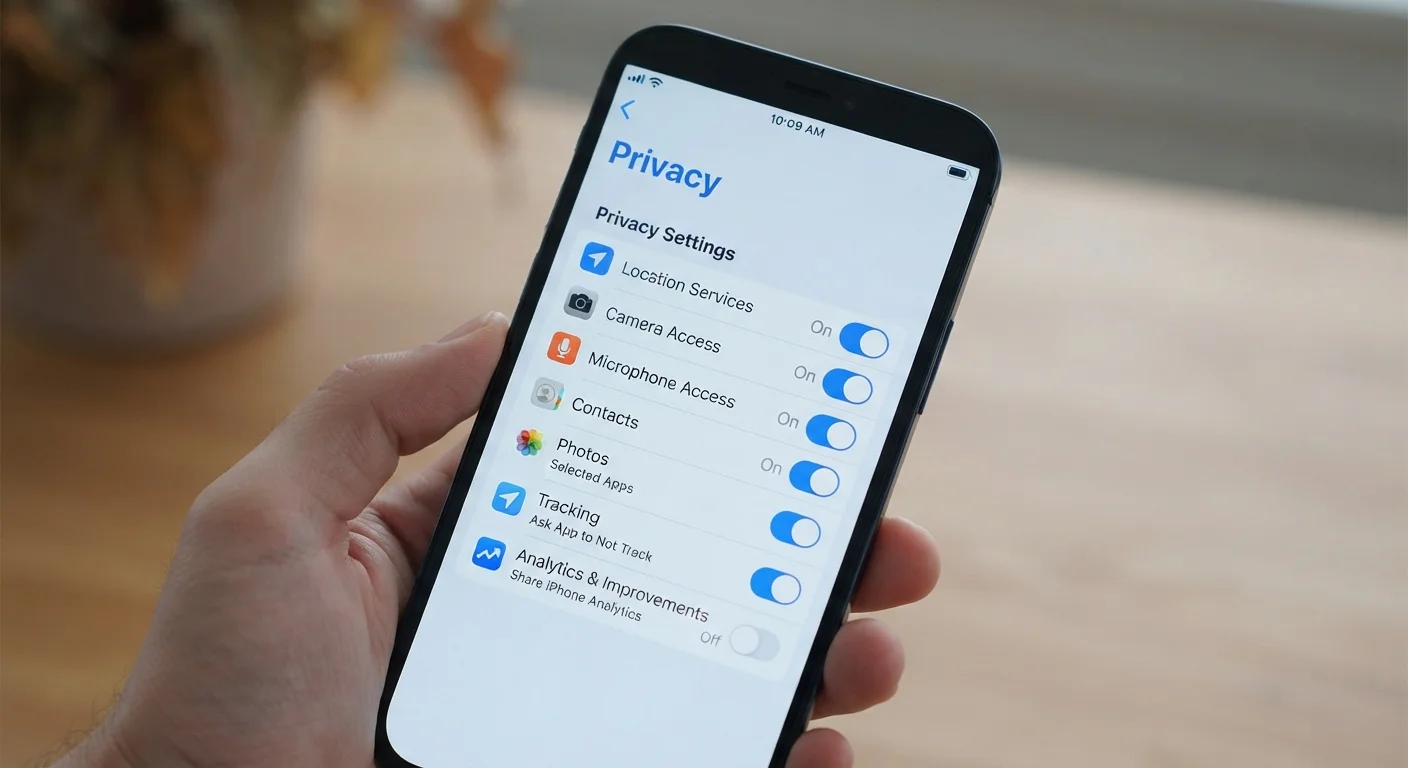
It's also worth noting that excessive push activity from apps running in the background contributes to battery drain. If that's a concern, common habits that shorten battery life covers this in more detail. And since notification permissions overlap with broader data access, a review of app privacy settings worth checking pairs well with this audit.
80+
Average app notifications received per day
Research published by various mobile analytics firms consistently places the average smartphone user in the range of 80 or more notifications per day across all apps.
23 min
Time to regain focus after an interruption
Studies in attention research, including work associated with the University of California, Irvine, suggest it can take over 20 minutes to return to deep focus after a task interruption.
Using Focus Modes and Scheduled Delivery
Beyond individual app settings, both major mobile platforms now offer system-level tools to batch notifications rather than let them arrive the moment they're sent. iOS's Focus modes and Android's Do Not Disturb schedules allow you to define windows when only priority contacts or apps can reach you.
Scheduled Summary (iOS) is particularly useful: it bundles non-urgent notifications and delivers them once or twice a day, so you review them on your terms rather than reacting in real time. This is especially worth setting up for social media apps, whose alerts are designed to provoke immediate engagement rather than inform.
Focus Modes Work Only If You Set Them Up
Focus and Do Not Disturb features are powerful but entirely opt-in - they do nothing until you configure them. If you've never set up a Focus schedule, open Settings → Focus (iOS) or Settings → Digital Wellbeing → Do Not Disturb (Android) and define at least one quiet period. Even a simple "no alerts after 9 pm" rule makes a measurable difference to evening wind-down and sleep quality.
Once your notification setup is leaner, keeping your overall app list manageable prevents the problem from creeping back. Practical habits for maintaining a leaner app library can help you stay on top of it over time.