
How Each Method Works
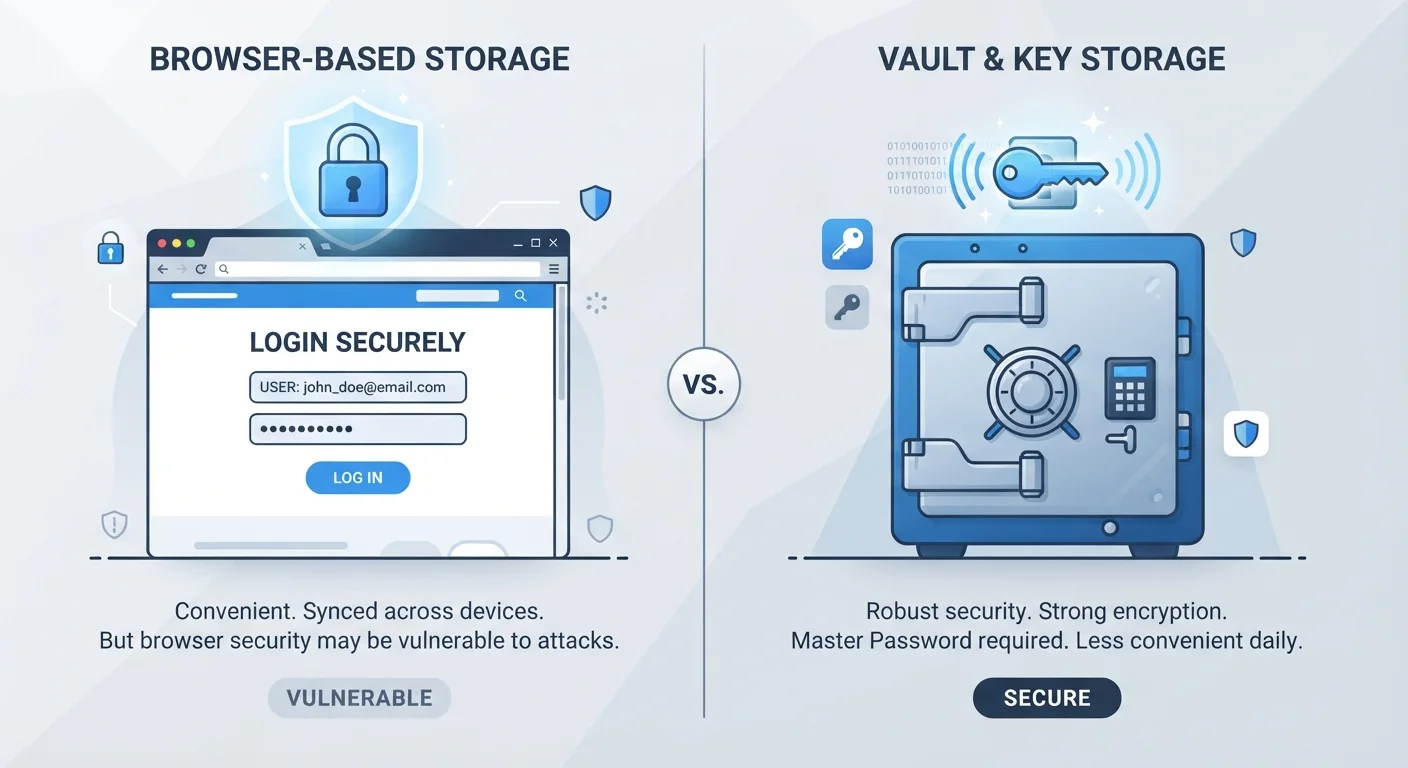
When you save a password in your browser - Chrome, Firefox, Safari, or Edge - it stores your credentials locally and optionally syncs them through your browser account (such as a Google or Apple ID). The browser then autofills login fields when it recognises the site. It requires no extra software and is available the moment you start using a browser.
A dedicated password manager is a separate application - either installed on your device or accessed through a browser extension - that stores all your passwords in an encrypted vault. You unlock everything with a single master password. The vault is typically synced across your devices via the provider's servers using end-to-end encryption, meaning even the provider cannot read your stored passwords.
Password reuse is one of the most common security mistakes people make. Both tools address this by remembering credentials for you - but the level of protection they offer differs considerably.
| Criterion | Password Managers | Browser-Saved Passwords |
|---|---|---|
| Encryption | End-to-end, independent vault | Tied to browser/device account |
| Cross-browser support | Works across all browsers | Limited to one browser |
| Cross-device sync | Yes, via encrypted cloud sync | Yes, via browser account |
| Breach alerts | Commonly included | Limited or absent |
| Password generation | Strong random passwords built-in | Basic suggestions only |
| Setup effort | Requires install and migration | Zero - already in your browser |
| Recovery if locked out | Can be difficult without master password | Recoverable via email or phone |
Security: Where the Key Differences Lie
Browser-saved passwords are protected by your device's login credentials and your browser account password. If someone gains access to your unlocked device - or your Google/Apple account - they can often view saved passwords directly through the browser's settings menu. Most browsers do prompt for your device password before revealing stored credentials, but this is a relatively thin layer of protection.
Password managers, by contrast, apply their own layer of strong encryption. Even if an attacker compromised your browser account, your password vault would remain separately secured behind the master password. Many password managers also offer features like breach alerts (notifying you when a site you use has been involved in a data leak), password strength audits, and the ability to generate long, random passwords for every account.
80%+
Data breaches involving stolen credentials
Verizon's Data Breach Investigations Report has consistently found that compromised passwords are a leading factor in the majority of hacking-related breaches.
~100
Average passwords per person
NordPass research has estimated that the average internet user manages close to 100 online accounts requiring passwords, making manual management impractical.
One important trade-off: if you forget your master password, recovery can be difficult or impossible depending on the service. Browser accounts typically allow recovery through your email or phone number, making them more forgiving - but that also means a compromised email account could expose your passwords.
For a broader look at the arguments around centralising trust in one app, see the case for and against password managers.
Convenience, Recovery, and Going Further
Browser-saved passwords win on convenience for everyday browsing - they autofill instantly, require no additional app, and integrate naturally into the login flow. For someone who uses one browser on one device, the experience is nearly frictionless.
Password managers require a small upfront investment: installing an extension, setting a master password, and migrating existing credentials. Once set up, however, they autofill just as smoothly and work across different browsers and operating systems. This cross-device flexibility is a meaningful advantage for anyone who switches between a phone, tablet, and computer.
Migrating Passwords Is Easier Than It Sounds
Most password managers allow you to import saved passwords directly from your browser via an export file, so you don't need to re-enter credentials manually. The process typically takes under ten minutes. Check the documentation for whichever tool you're considering - most publish step-by-step import guides.
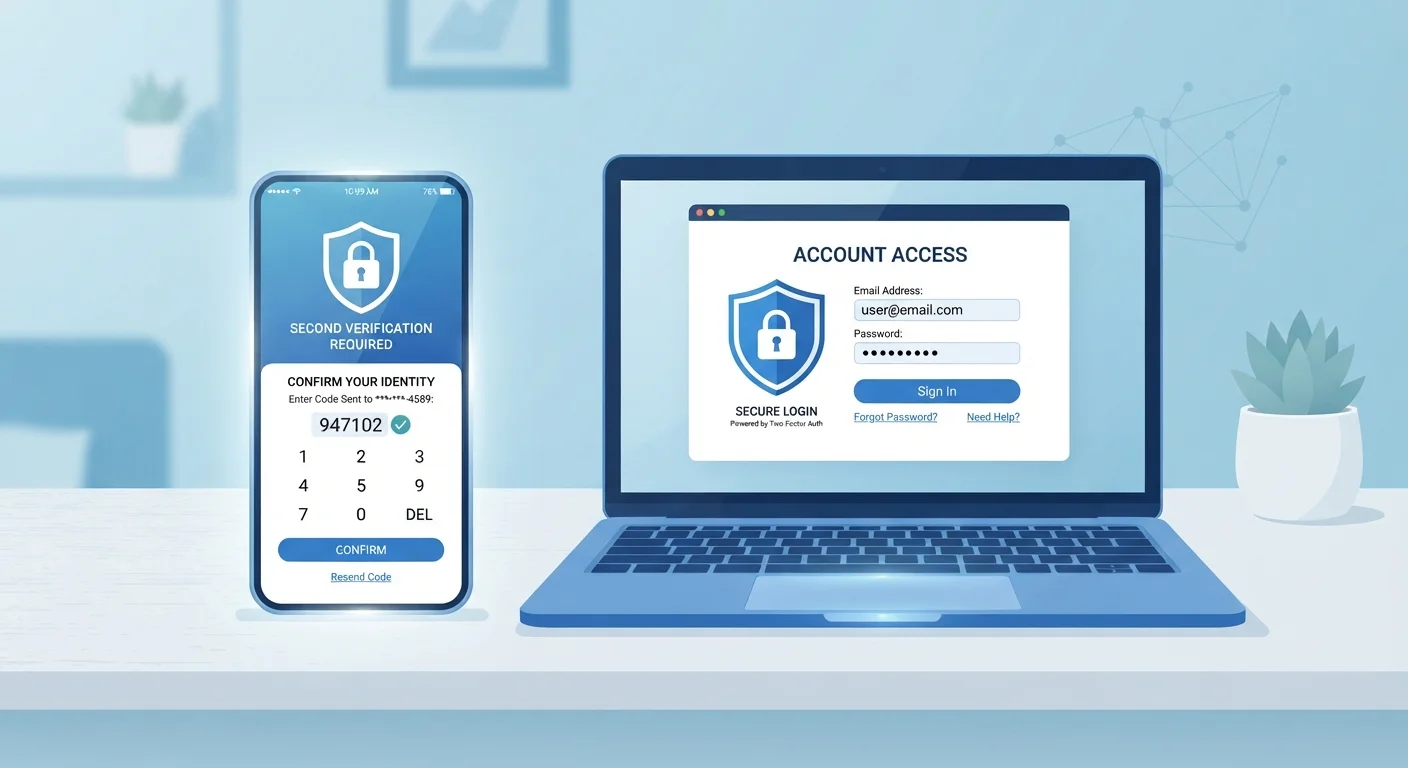
Whichever method you use, pairing it with two-factor authentication (2FA) adds a critical extra layer. If your passwords are ever exposed, 2FA can still block unauthorised access. Learn how two-factor authentication works and why it matters for everyday accounts.
If you want to review all your current credential and account security practices together, the personal data security audit checklist covers passwords, app permissions, and recovery settings in one place.
This article is for general informational purposes only and does not constitute security or professional advice. Evaluate any tool based on your own needs and circumstances.