
How Each Connection Actually Works
Wi-Fi connects your phone to a local router - a physical device in your home, office, or a public venue - which then links to the internet through a broadband cable or fiber line. The connection is wireless but localized: typically effective within 20-50 meters of the router.
Mobile data works differently. Your phone communicates directly with cell towers operated by your mobile carrier (such as Telekom, Vodafone, or O2 in Germany). Those towers connect to the internet on your behalf, meaning you can be connected almost anywhere there's network coverage - outdoors, in a moving vehicle, or in a building without Wi-Fi.
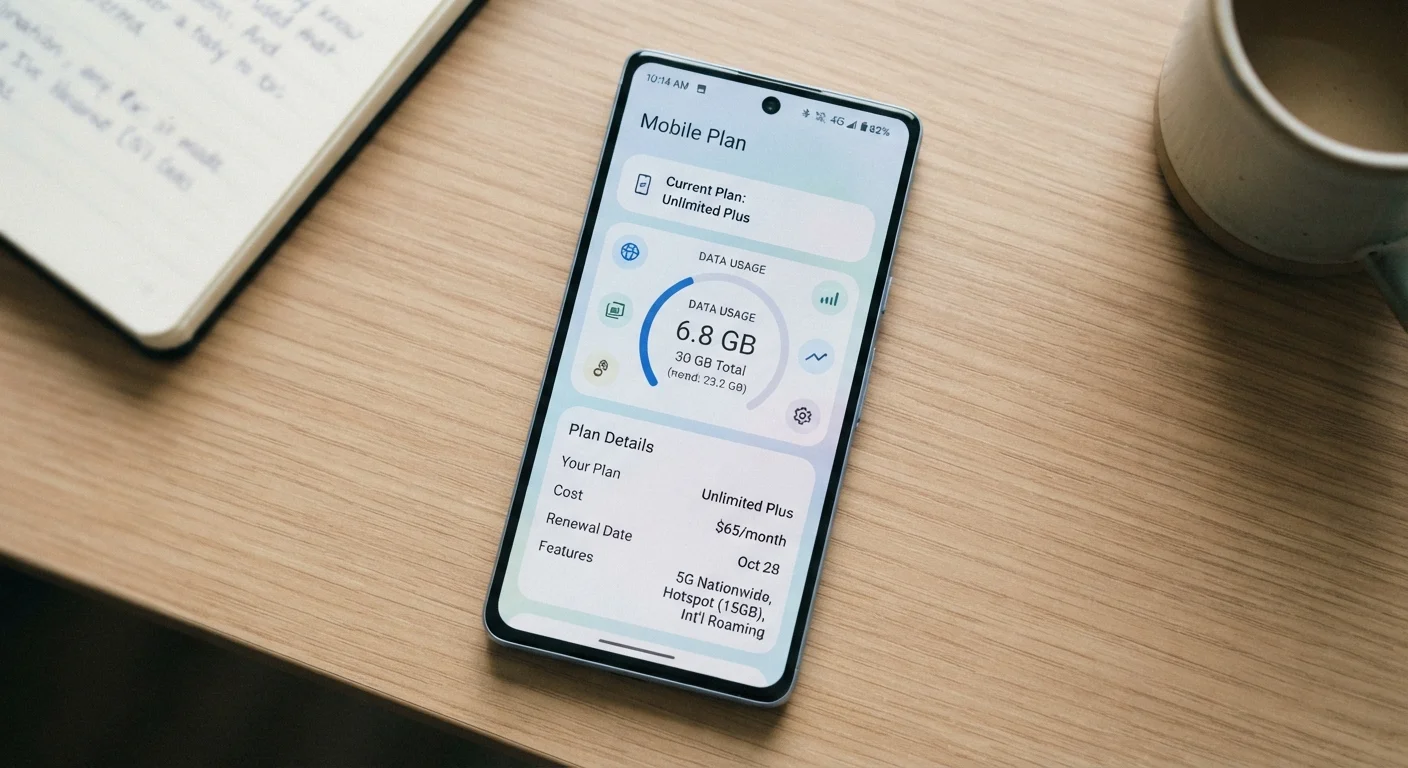
The key practical difference: Wi-Fi usage doesn't count against your mobile plan's data allowance, while every megabyte sent over mobile data does. For context, streaming a standard-definition video for one hour can use roughly 1 GB of mobile data. That matters if your plan has a monthly cap. To understand exactly what the numbers on your plan mean, see our guide to mobile plan terminology.
| Criterion | Wi-Fi | Mobile Data |
|---|---|---|
| Coverage area | Near a router (home, office, venue) | Anywhere with carrier signal |
| Counts toward data cap | No | Yes |
| Typical speed | Often faster indoors | Varies by location and network generation |
| Reliability while moving | Drops out as you move away | Maintains connection across areas |
| Security on public networks | Can be lower on open networks | Generally more private |
| Battery usage | Generally lower | Can be slightly higher |
| Setup required | One-time password entry per network | Automatic once SIM is active |
When Your Phone Switches - And When It Gets It Wrong
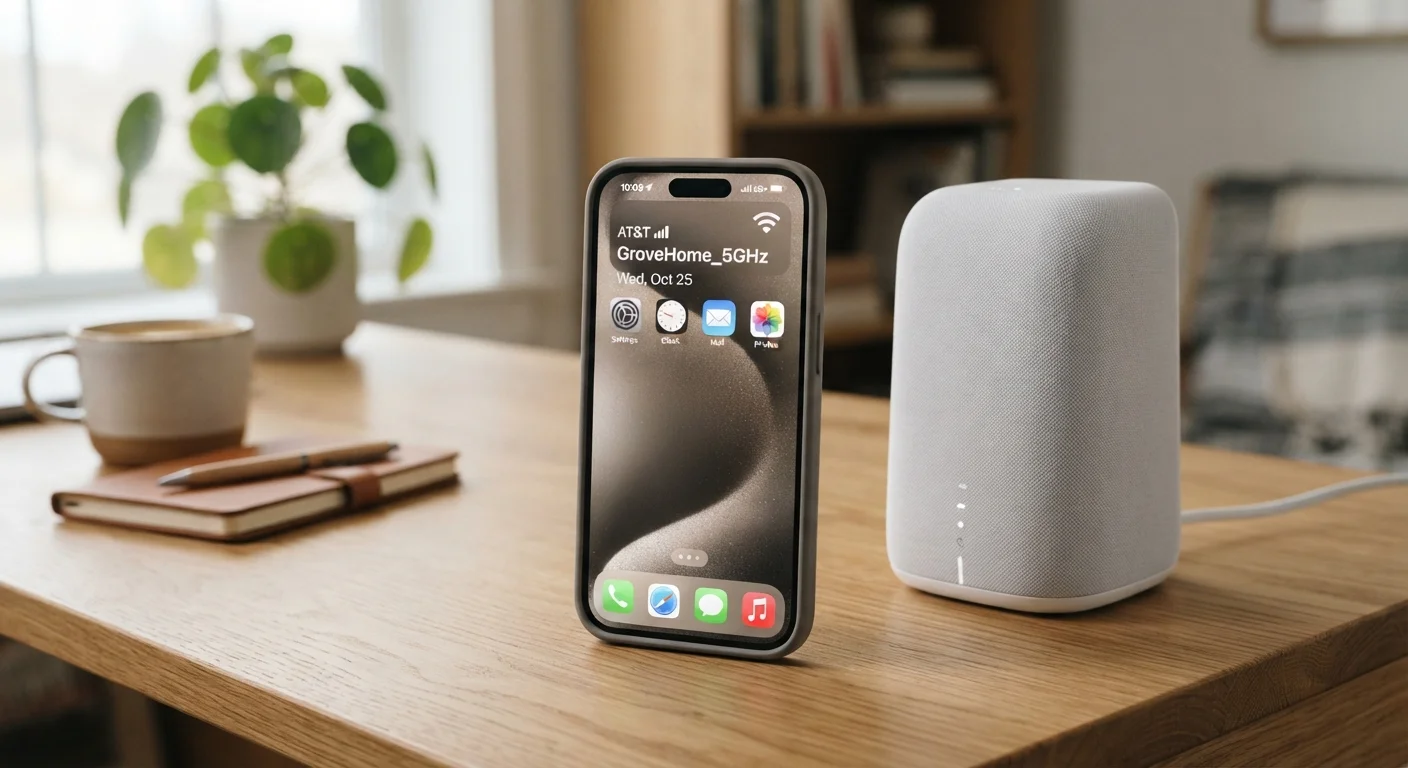
Both Android and iOS are designed to prefer Wi-Fi whenever a saved network is detected nearby. This happens automatically and silently. The moment you enter your home, your phone typically drops its mobile data connection and joins your home Wi-Fi - you'll see the Wi-Fi icon replace the signal bars in the status bar.
The problem is that your phone uses network detection, not network quality, to make this decision. If your Wi-Fi router is two rooms away and the signal is weak, your phone may still cling to that Wi-Fi connection rather than switching to the stronger mobile data signal. The result: sluggish load times, frozen videos, and failed uploads - even though your mobile connection would have handled the task just fine.
Modern phones have improved this with features like "Wi-Fi Assist" (iOS) and "Adaptive Wi-Fi" (Android), which can automatically switch to mobile data when Wi-Fi performance drops below a threshold. These features are usually enabled by default but can be toggled in your Settings app under the Wi-Fi or Mobile Data sections. Be aware: they do consume extra mobile data, so check whether they're appropriate for your plan.
~1 GB
Data used per hour of SD video streaming
Standard-definition video streaming consumes roughly 1 GB per hour over mobile data, making Wi-Fi the practical choice for extended viewing.
20-50 m
Typical indoor Wi-Fi range
Most consumer Wi-Fi routers provide reliable coverage within approximately 20 to 50 meters, depending on walls and interference.
For a closer look at how Android and iOS handle connectivity and other features differently day to day, see our Android vs. iOS comparison.
Practical Tips for Managing Your Connection
Understanding the switch matters most in a few specific scenarios:
- Downloading large files or app updates: Do this on Wi-Fi. Large downloads over mobile data can exhaust a monthly allowance quickly, and many phones will warn you or pause automatically when not on Wi-Fi.
- Video calls and conferencing: Wi-Fi at home is generally more stable, but if your signal is inconsistent, switching manually to mobile data may produce a clearer call.
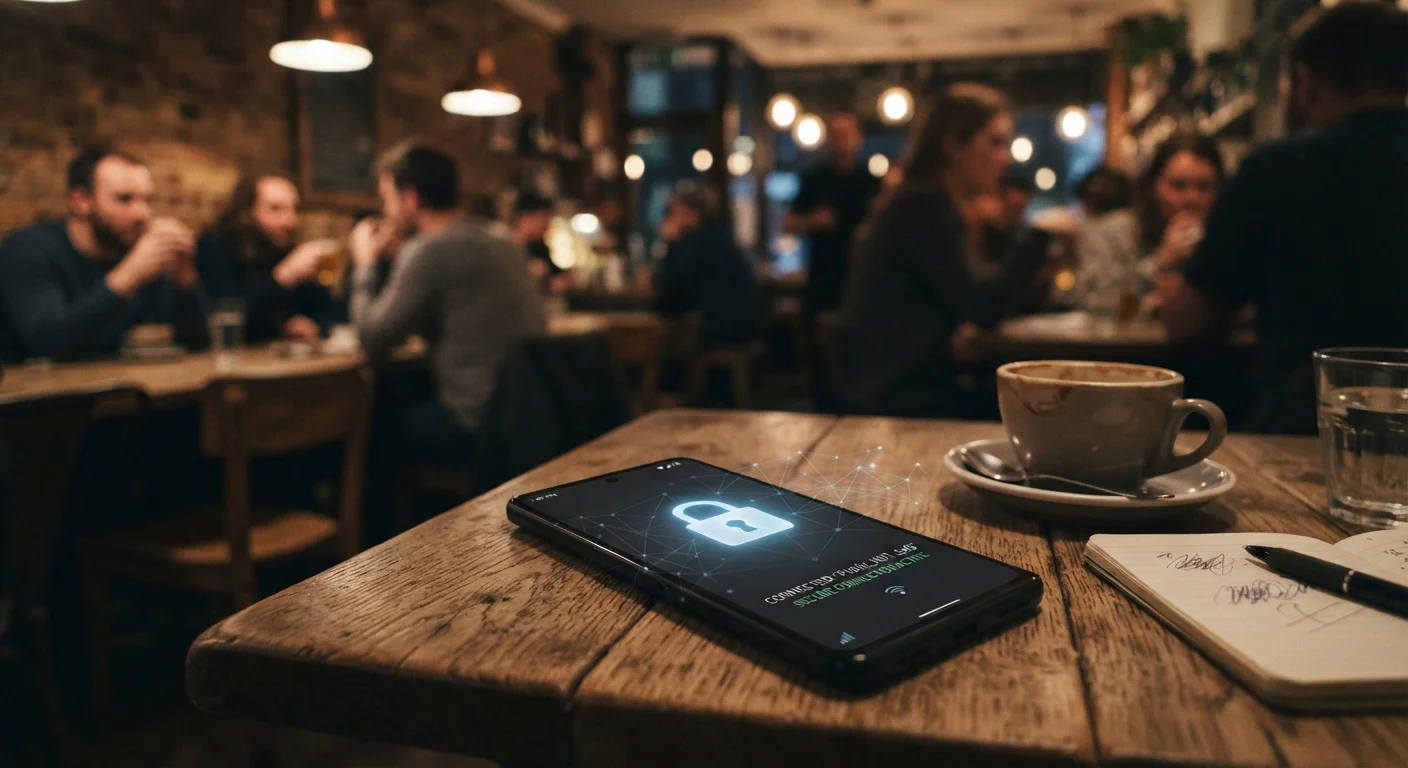
- Public Wi-Fi networks: Just because Wi-Fi is available doesn't mean you should use it. Open networks in cafés, airports, and hotels present real security considerations. Public Wi-Fi carries risks that most people overlook - mobile data is often the safer choice in those environments.
- Apps working offline: Some apps store content locally and don't need a live connection. See when offline apps make more sense than relying on either connection.
You can always check which connection your phone is using by glancing at the status bar. The Wi-Fi fan icon means you're on Wi-Fi; signal bars with a label like 4G or 5G means you're on mobile data. Knowing the difference gives you the control to switch manually when needed - usually just a tap away in the quick-settings panel.
Data Roaming Outside Germany
When traveling internationally, your phone may connect to a foreign carrier's network. This is called roaming, and using mobile data while roaming can incur significant extra costs. Most Android and iOS devices let you disable roaming in Settings under Mobile/Cellular. Within the EU, roaming charges are regulated and generally included in domestic plans, but always verify with your carrier before traveling.