
Storage, RAM, and Cache: Three Things Your Phone Keeps Separate
When people say their phone is "full," they almost always mean one specific thing: internal storage is running low. But your phone actually manages three distinct types of memory, and confusing them leads to poor troubleshooting decisions.
Internal storage is permanent. It holds every app, photo, video, and document on your device - even when the phone is powered off. Think of it like a filing cabinet.
RAM (Random Access Memory) is temporary. It holds whatever your phone is actively working on right now - the app you have open, the webpage loading in the background. It empties itself automatically when those tasks end. A phone low on RAM feels sluggish; a phone low on storage cannot install new apps or save new files.
Cache sits between the two. Apps create cached files to load content faster - for example, a news app caches article thumbnails so it doesn't have to re-download them every time. Cache is stored in internal storage but is designed to be disposable. Clearing it is safe and often frees meaningful space.
Storage vs. RAM: A Common Mix-Up
When a phone feels slow, people often assume storage is the problem. In reality, slowness is usually caused by low RAM or an aging processor - not a full storage drive. Freeing up internal storage won't speed up a sluggish phone, but it will allow the device to install updates and save new files without errors.
Why Storage Fills Up Faster Than You Expect
There are three main culprits, and they all grow quietly without obvious warnings.
Photos and Videos
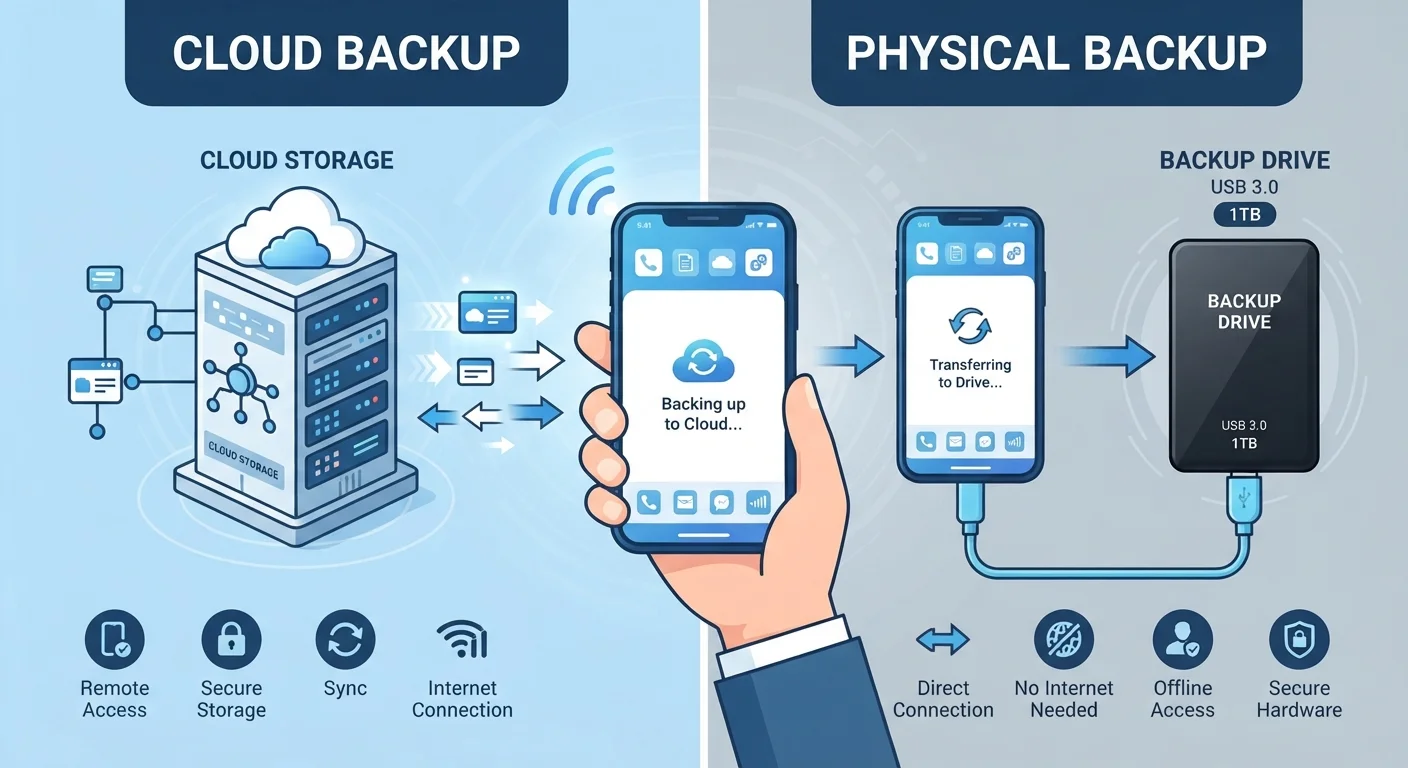
Modern smartphones shoot at very high resolutions. A single 4K video clip can occupy several hundred megabytes. If your camera roll backs up to the same device rather than to a cloud service, years of photos accumulate quickly. See our guide to cloud vs. local backups for a breakdown of how each approach differs.
App Data Growth
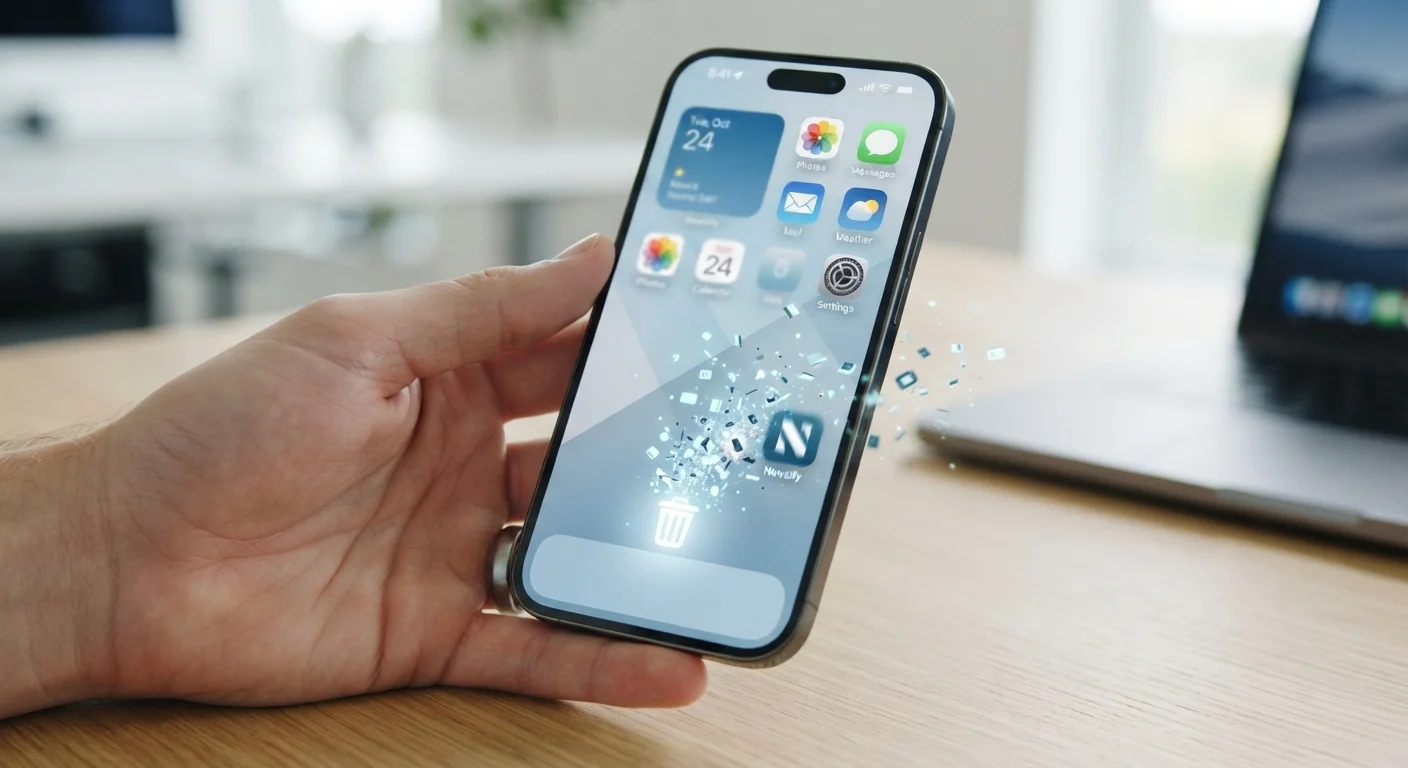
Apps expand significantly beyond their initial install size. A messaging app stores every image and video shared in your conversations. A streaming app may download content for offline use. Over months, a modest app can grow from 50 MB to over 1 GB. What actually gets deleted when you remove an app is often less than you'd assume.
System and Pre-installed Software
Your operating system - Android or iOS - consumes a fixed portion of your advertised capacity. On a nominally 128 GB phone, you might realistically start with 110-115 GB available, and that figure only shrinks as system updates are installed.
~10-15 GB
Typical OS and system files footprint
Android and iOS installations, including pre-loaded apps and system data, commonly consume this range even before any personal use begins.
~400 MB
Average size of one minute of 4K video
File size varies by codec and frame rate, but 4K footage recorded on modern smartphones routinely reaches this range per minute of recording.
64 GB
Most common entry-level storage tier
Many mid-range smartphones still ship with 64 GB as their base storage option, which fills noticeably faster than higher-tier models for active users.
Practical Ways to Reclaim and Manage Space
Understanding the problem makes the solutions much more logical.
- Review your camera settings. Shooting in a slightly lower resolution or using efficient formats (such as HEIF on iPhones or WebP on Android) can halve photo file sizes with little visible quality difference.
- Offload photos to cloud storage. Services that automatically back up your camera roll allow you to delete local copies once they're safely uploaded. Our article on how cloud storage actually works explains what "in the cloud" really means for your files.
- Clear app caches periodically. On Android, go to Settings → Apps → → Storage → Clear Cache. On iPhone, some apps offer this in their own settings, or you can offload and reinstall the app.
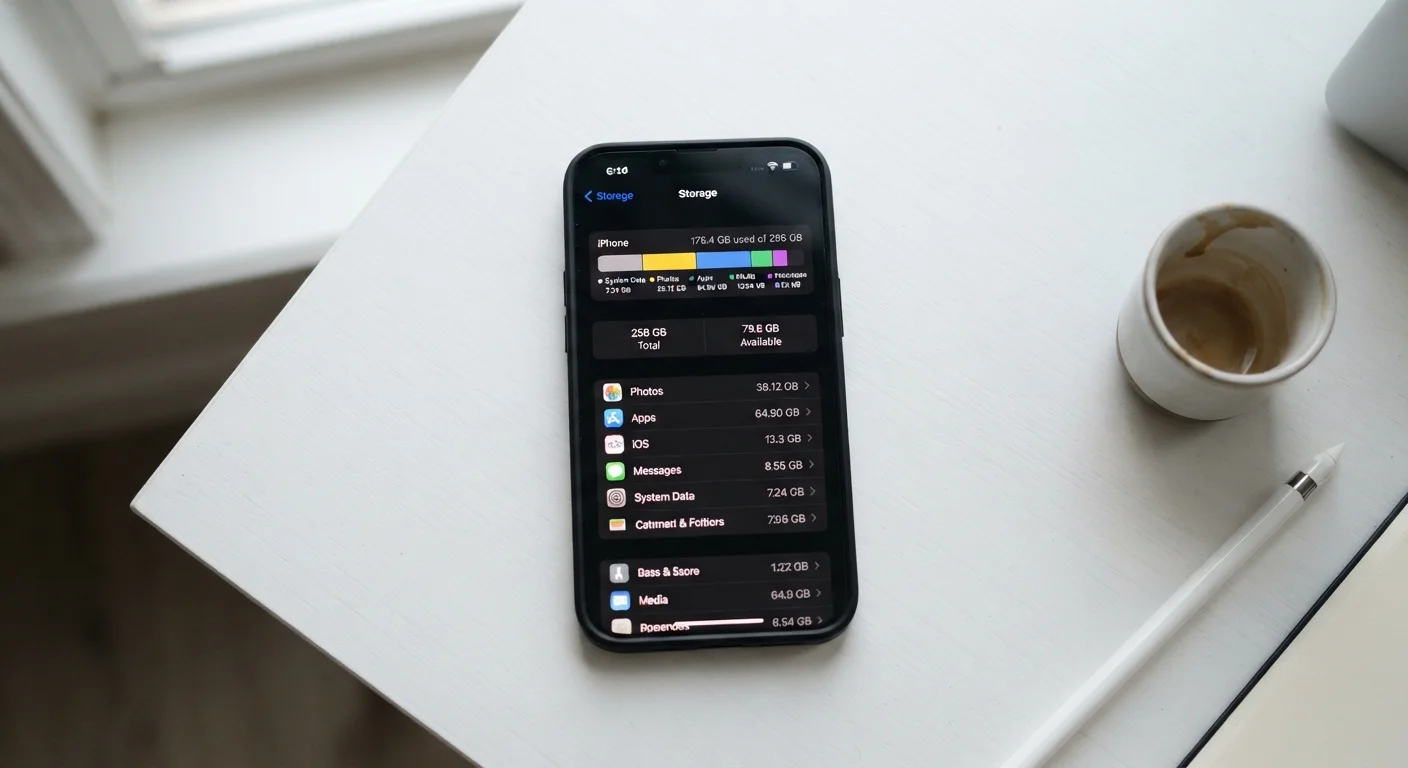
- Check which apps are largest. Both Android and iOS show a ranked list of apps by size in storage settings. This single view often reveals surprises - a podcast app or navigation tool quietly storing gigabytes of offline data.
- Delete rather than archive. Content you haven't opened in over a year is unlikely to be needed urgently. Deleting it permanently is more effective than moving it to a rarely-checked folder on the same device.
Check Your Storage Breakdown First
Before deleting anything, open your phone's storage settings and look at the breakdown by category - photos, apps, system, and other. Both Android and iOS display this clearly. Targeting the largest category first saves time and recovers the most space with the least effort.
For context on how storage relates to your mobile data plan - a separate concept entirely - see what the GB figure on a mobile plan actually means.