
What a Smartphone Actually Is
A smartphone is a handheld computer that also makes phone calls. It runs software, connects to the internet, and stores your photos, messages, and contacts - all in a device that fits in your pocket. Most smartphones run one of two operating systems: Android (made by Google, used across many device brands) or iOS (made by Apple, used exclusively on iPhones). The operating system is the software that controls everything on your phone, from the screen you tap to the apps you open.
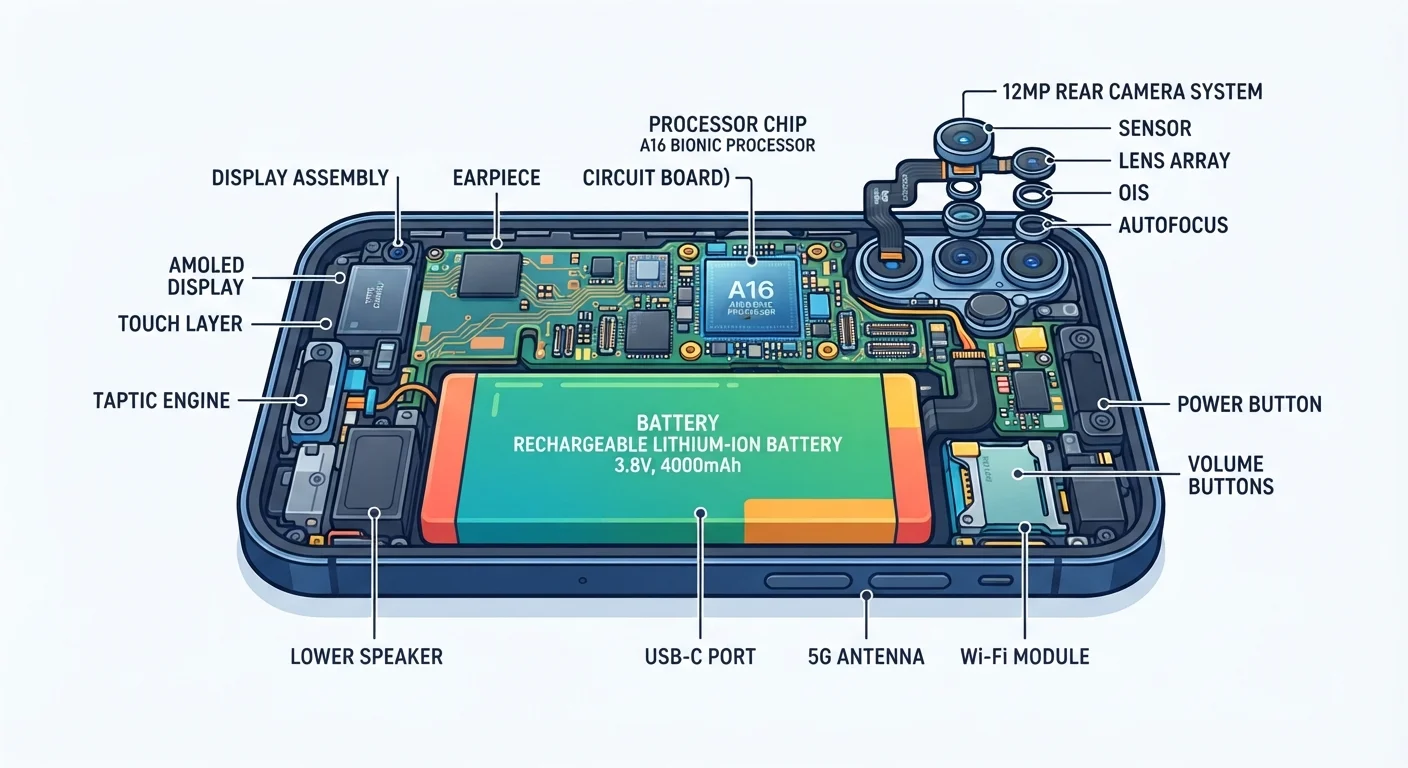
Understanding a few basic components makes the whole experience less confusing. For a deeper look at how those parts interact, see how a smartphone's key components work together.
Operating system
The core software that runs your phone and controls how apps, the screen, and connections work. Android and iOS are the two most common examples.
SIM card
A small chip inserted into your phone that identifies you on a mobile network, enabling calls, texts, and mobile internet access.
eSIM
A digital SIM built into newer phones that can be activated remotely, without needing a physical card to insert.
App store
The official marketplace where you safely download apps onto your phone - Google Play for Android devices, App Store for iPhones.
Two-factor authentication
A security step that requires a second form of confirmation - usually a code sent to another device - before allowing access to an account.
Cloud backup
An automatic copy of your phone's data saved securely on remote internet servers, so your contacts and photos are not lost if the phone is damaged or stolen.
Your First Steps: SIM Cards, Wi-Fi, and Accounts
Before your phone can make calls or browse the internet, it needs a connection. There are two ways to get online: a SIM card inserted into the phone (provided by a mobile network, giving you calls, texts, and mobile data) or a Wi-Fi connection to a home router or public network.
Most phones in Germany come with either a physical SIM card or support for an eSIM - a built-in digital SIM you activate without a physical card. Your mobile network provider sets this up for you.
Once connected, the next step is creating or signing into an account. Android phones require a Google account; iPhones require an Apple ID. These accounts unlock the app store, enable cloud backups, and help you recover your phone if it is lost. Use a strong, unique password and enable two-factor authentication (a second confirmation step, usually a code sent to another device) for added security.
Set Up Your Account Before Anything Else
Creating your Google or Apple account is the single most important first step. It unlocks the app store, enables automatic backups, and lets you locate or remotely wipe your phone if it goes missing. Take five minutes to do this before downloading any apps or adjusting any settings.
Navigating the Home Screen and Settings
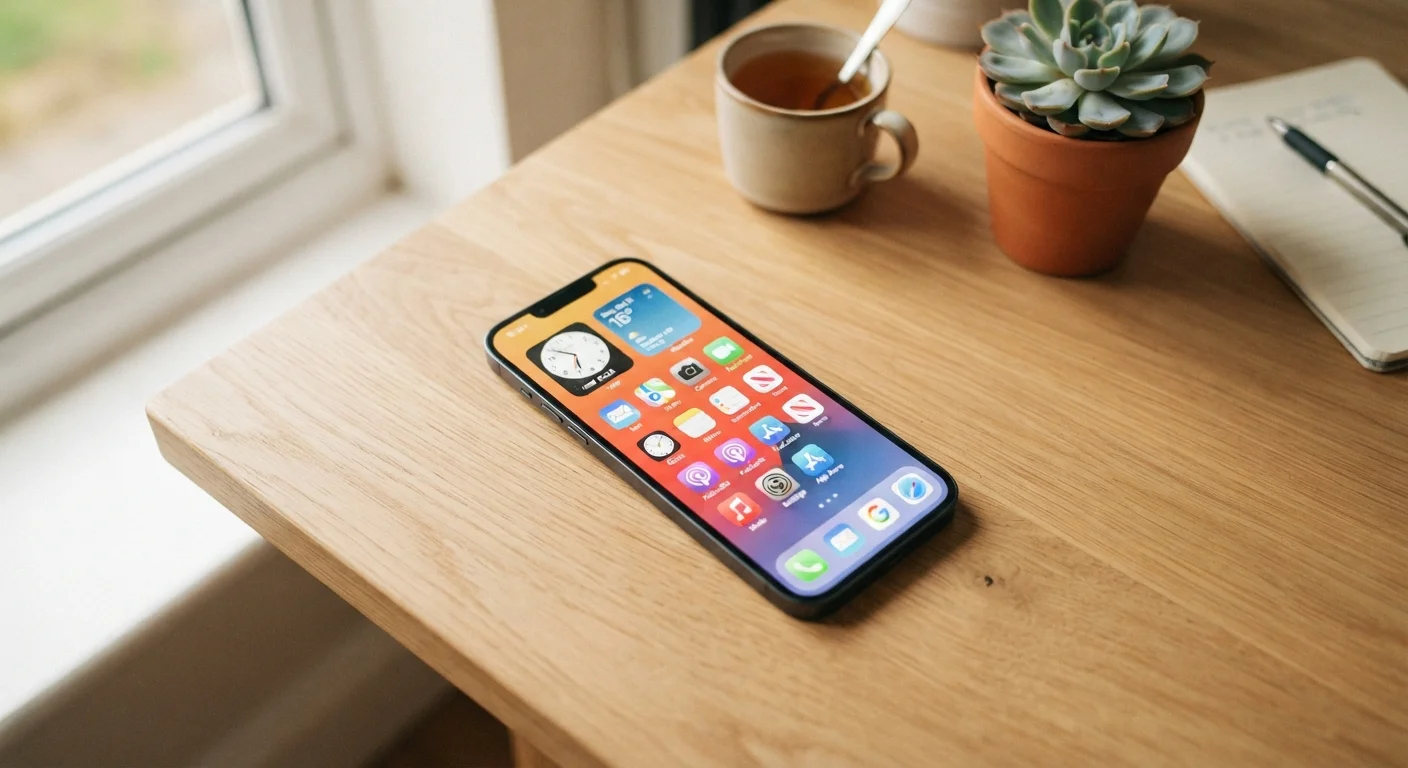
When you unlock your phone, you land on the home screen - a grid of app icons you can tap to open programs. Swiping left or right reveals additional home screen pages. At the bottom of the screen, a fixed row of icons (called the dock) holds your most-used apps.
The Settings app is your control panel. It is where you adjust screen brightness, manage Wi-Fi connections, set up a fingerprint or PIN lock, and control which apps can access your camera or location. Do not hesitate to explore - almost every setting can be reversed, and reading each option takes only a moment.
One setting worth enabling immediately is a screen lock. A PIN, fingerprint, or face recognition prevents anyone else from accessing your phone if it is picked up or stolen.
Screen Lock Styles Vary by Phone
Some older or budget phones may only offer a PIN or pattern lock rather than a fingerprint scanner or face recognition. Any of these options is significantly better than leaving the phone unlocked. Check under Settings › Security (Android) or Settings › Face ID & Passcode (iPhone) to see what your device supports.
Apps: How to Find, Install, and Manage Them
Apps are programs designed for specific tasks - messaging, banking, navigation, or taking photos. You download them from an official store: the Google Play Store on Android or the App Store on iPhone. Search for the app by name, tap Install (or Get on iPhone), and the app appears on your home screen within seconds.
Many useful apps are free; others charge a one-time or monthly fee. Before installing, check the developer name and read a handful of user reviews. Avoid installing apps from websites or links in messages - always use the official store. For broader guidance on adopting digital tools, visit a complete walkthrough of digital tools from sign-up to daily use.
To remove an app, press and hold its icon until a menu appears, then select Uninstall or Remove App. This frees up storage space and keeps your home screen tidy.
Staying Safe and Protecting Your Privacy
Smartphones hold a significant amount of personal information, so a few simple habits go a long way. Keep your phone's software updated - updates often fix security vulnerabilities. Be cautious about which apps you grant permissions to: an alarm app, for example, does not need access to your contacts or camera.
When using public Wi-Fi (in a café or train station, for instance), avoid logging into banking or sensitive accounts. Public networks can be monitored by others. For more essential habits, explore the online safety guidance on this site.
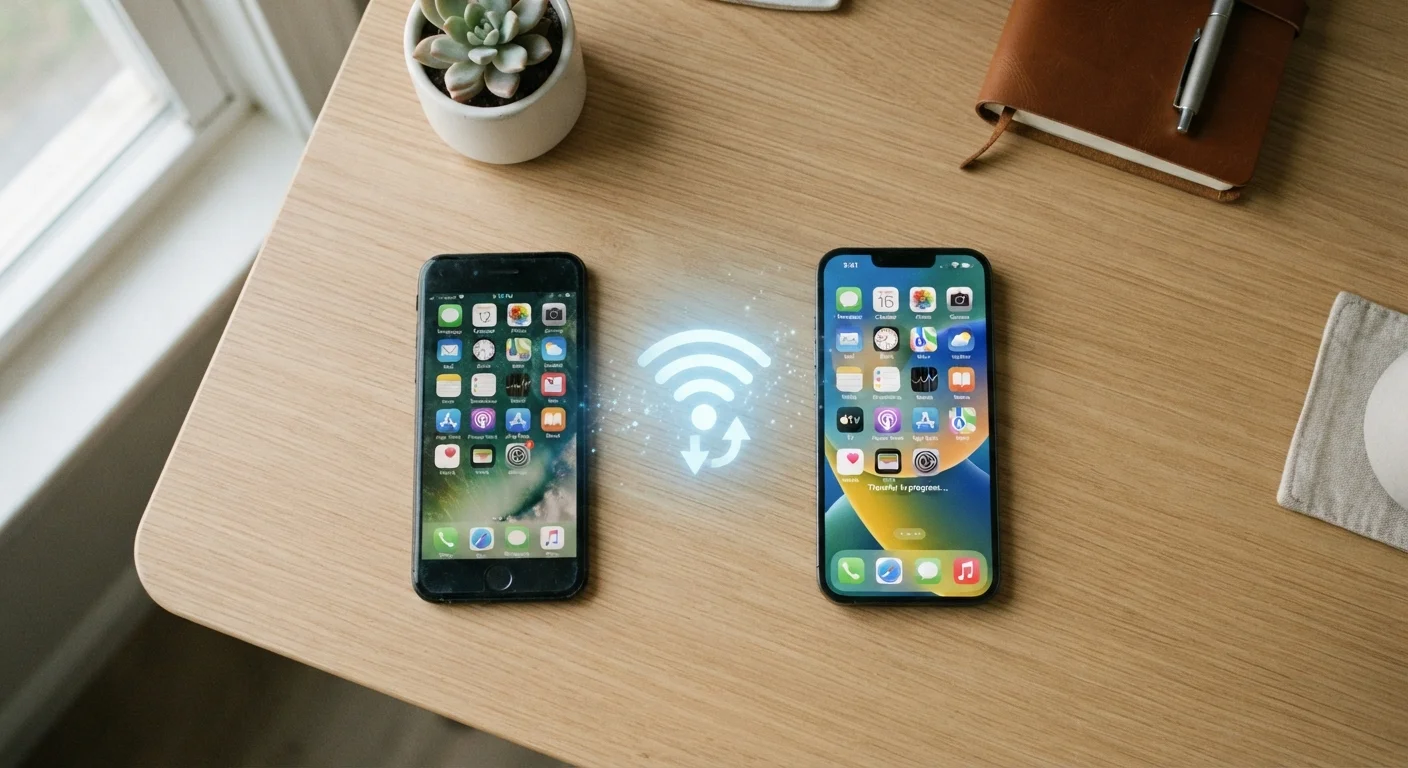
Finally, set up a backup. Both Android and iPhone offer free cloud backup through your account, automatically saving your photos and app data. If your phone is lost, stolen, or broken, a backup means you do not lose everything. For step-by-step help moving data when changing phones, see setting up a new smartphone without losing your old data.
Apps & Digital Tools Hub
A curated collection of articles explaining how everyday apps and digital tools work, helping you choose and use them with confidence.
Online Safety Essentials
Practical habits and straightforward explanations for staying secure in digital spaces, from password basics to recognising phishing messages.