
What Is a Digital Calendar and Why Use One?
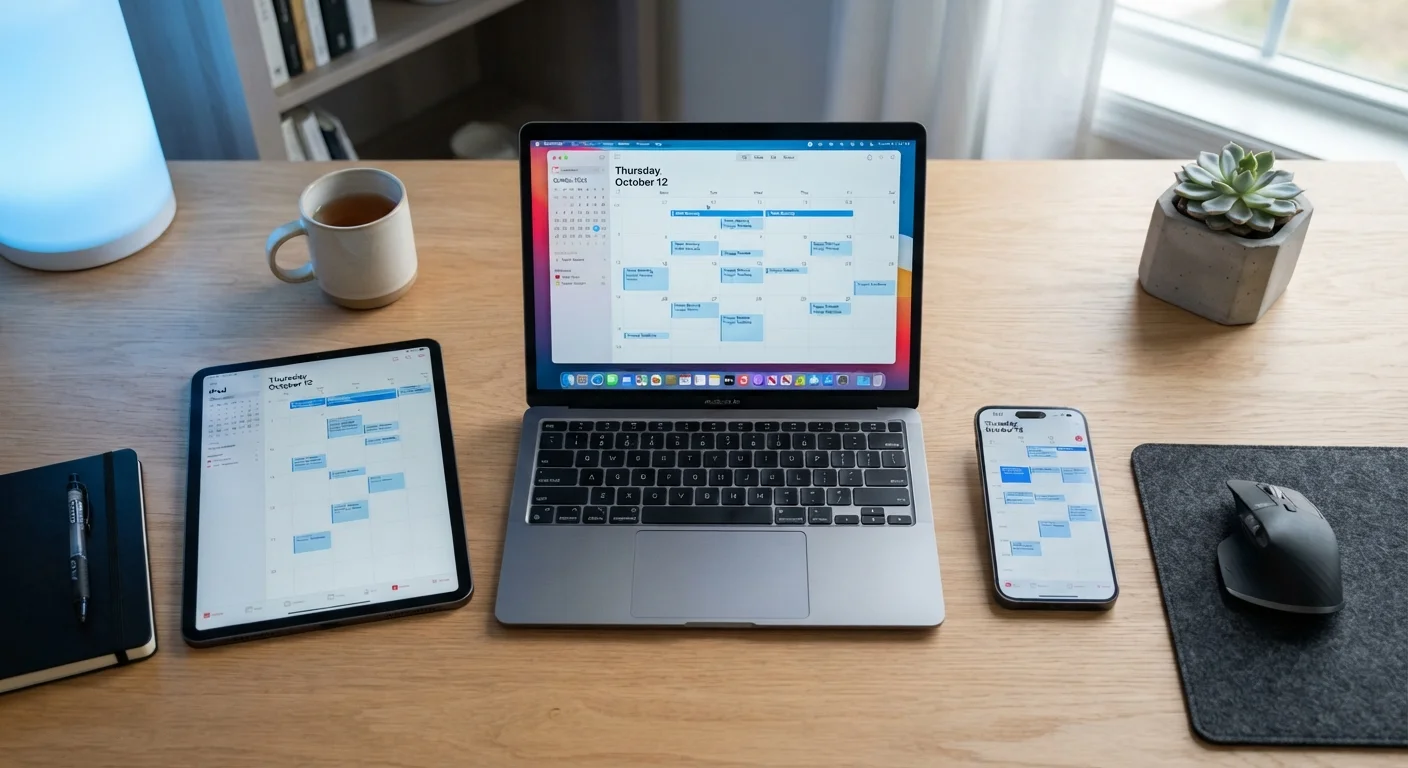
A digital calendar is an app or web-based tool that lets you schedule events, set reminders, and organise your time - all stored online rather than on a physical page. Unlike a paper diary, a digital calendar updates instantly across every device you use and can notify you before an appointment so nothing slips through.
The practical advantages are significant. Events you add on your phone appear immediately on your laptop. If a meeting changes, you update it once and the change reflects everywhere. For anyone juggling work deadlines, household tasks, and social commitments, this alone removes a lot of mental overhead.
If you're building out your broader digital setup, our complete walkthrough of adopting digital tools covers how to evaluate and embed new apps into your daily routine.
Setting Up Your First Calendar
Most people already have access to a calendar app without realising it. If you use Gmail, Google Calendar is automatically available. iPhone and iPad users have Apple Calendar built in. Anyone with a Microsoft or Outlook account can use Microsoft Calendar. All three work from a free account.
To get started: open the calendar app on your device (or visit the provider's website on a computer), sign in with your existing account, and create your first event by tapping or clicking on a date. Give the event a title, set a time, and optionally add a location or notes. That's the core loop - everything else builds on it.
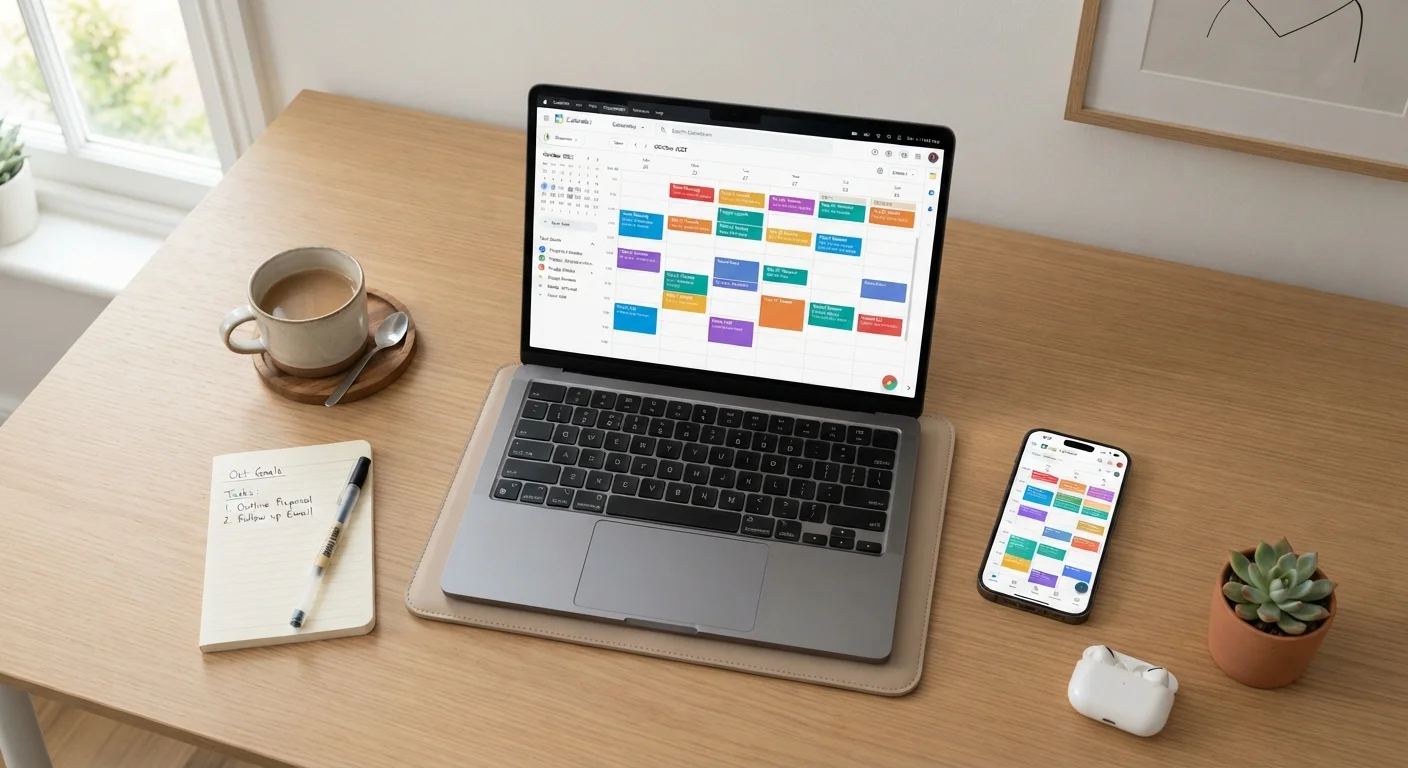
A useful early step is to create separate calendars within the app for different areas of your life - for example, one for work, one for personal appointments, and one for household tasks. Each can be colour-coded, making your week much easier to read at a glance.
Start With Two or Three Calendars
It's tempting to create many specific calendars early on, but starting with just two or three (such as Work, Personal, and Family) keeps things manageable. You can always add more later once you have a feel for how you use the tool. Colour-code them distinctly so you can tell them apart at a glance.
Syncing Across Your Devices
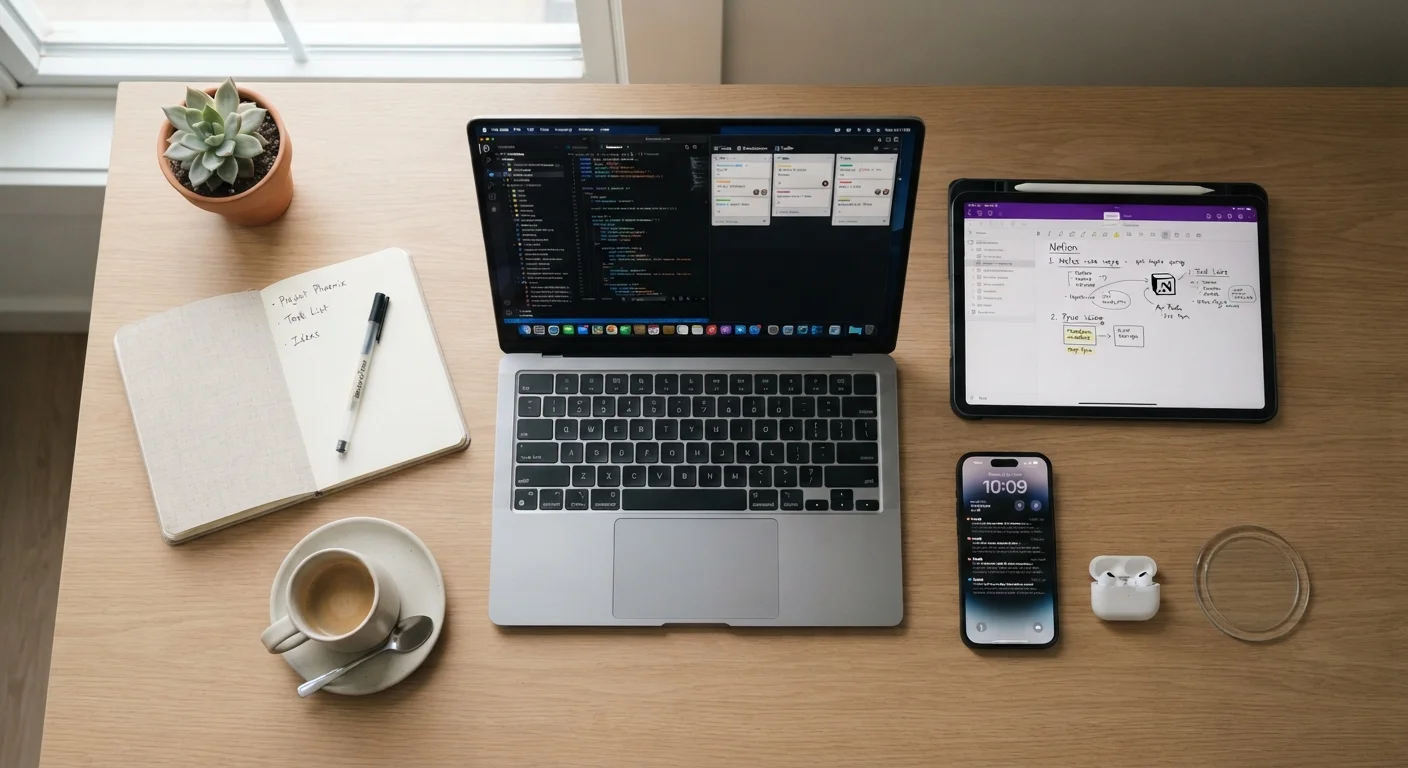
Sync is what makes a digital calendar genuinely useful. When sync is enabled, any change you make - adding, editing, or deleting an event - appears on all your other devices within seconds, as long as they're connected to the internet.
For sync to work, you need to be signed into the same account on each device. On Android, this usually happens automatically if your Google account is set up. On iPhone, go to Settings > Calendar > Accounts to confirm your account is active. On a computer, simply log into the calendar's website or desktop app with the same credentials.
If events aren't appearing where you expect them, the most common fix is checking that you're signed into the same account on each device and that the calendar is set to sync (not stored locally). For a deeper look at what causes sync to fail, see our guide on troubleshooting cross-device sync.
Sharing Calendars With Others
Sharing a calendar lets another person - a partner, family member, or colleague - see your schedule without you having to tell them every detail manually. Most apps let you share an entire calendar (such as your 'Family' calendar) while keeping others private.
To share in Google Calendar: right-click the calendar name in the left-hand sidebar, choose Settings and sharing, then add the email address of the person you want to share with. You control whether they can only view events or also edit them. Apple Calendar and Microsoft Calendar follow a similar process from within their settings menus.
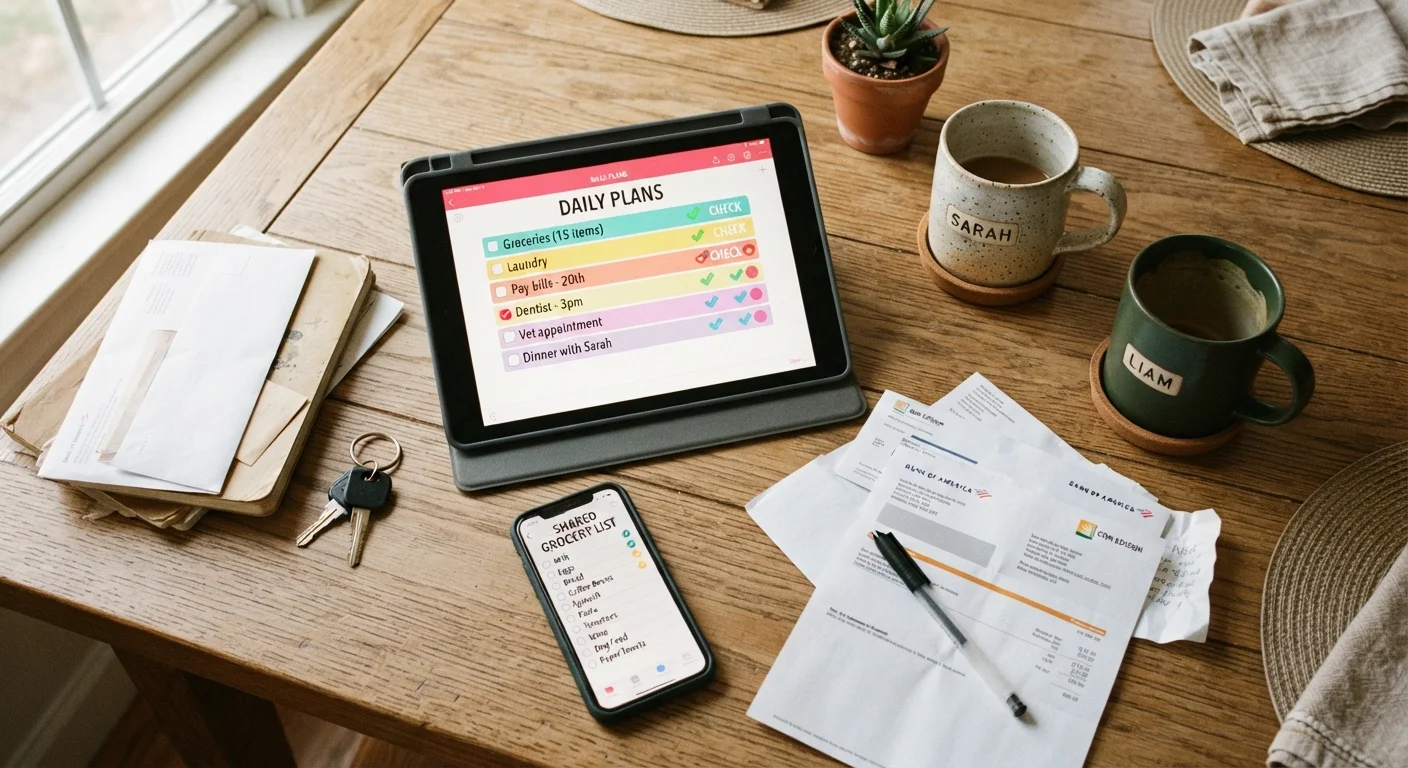
Shared calendars are particularly helpful for households. If you're looking for more ways to reduce friction around joint admin, digital tools for shared household management covers a range of apps that complement a shared calendar approach.
Check Permissions Before Sharing
When sharing a calendar, double-check the permission level you're granting. 'View only' lets the recipient see your events but not change them - this is appropriate for most sharing situations. Granting 'edit' access means the other person can add, modify, or delete events, so reserve that for people you fully trust.
Habits That Keep Your Calendar Actually Useful
A calendar is only as good as the habit of using it. A few straightforward practices make the difference between a tool you rely on and one you forget to check.
- Add events immediately. When something is confirmed - a dentist appointment, a call with a friend - put it in the calendar right away, not later.
- Set reminders that match your routine. A reminder 10 minutes before an appointment works well for local tasks; for anything requiring travel, 30-60 minutes is more realistic.
- Review the coming week every Sunday. A five-minute scan of next week prevents surprises and lets you spot conflicts early.
- Keep your app setup lean. Avoid installing multiple competing calendar apps - it leads to confusion about which one holds what. Our article on keeping your app library manageable explains how to prevent this kind of digital clutter.
For broader organisation beyond scheduling, organising your digital life across files, photos, and notes offers a practical framework for bringing order to all your digital tools together.